
Google Drive Sync
Drive Sync keeps a copy of your Better Sidebar organization in your own Google Drive, so a new laptop or a cleared browser doesn't cost you six months of filing.
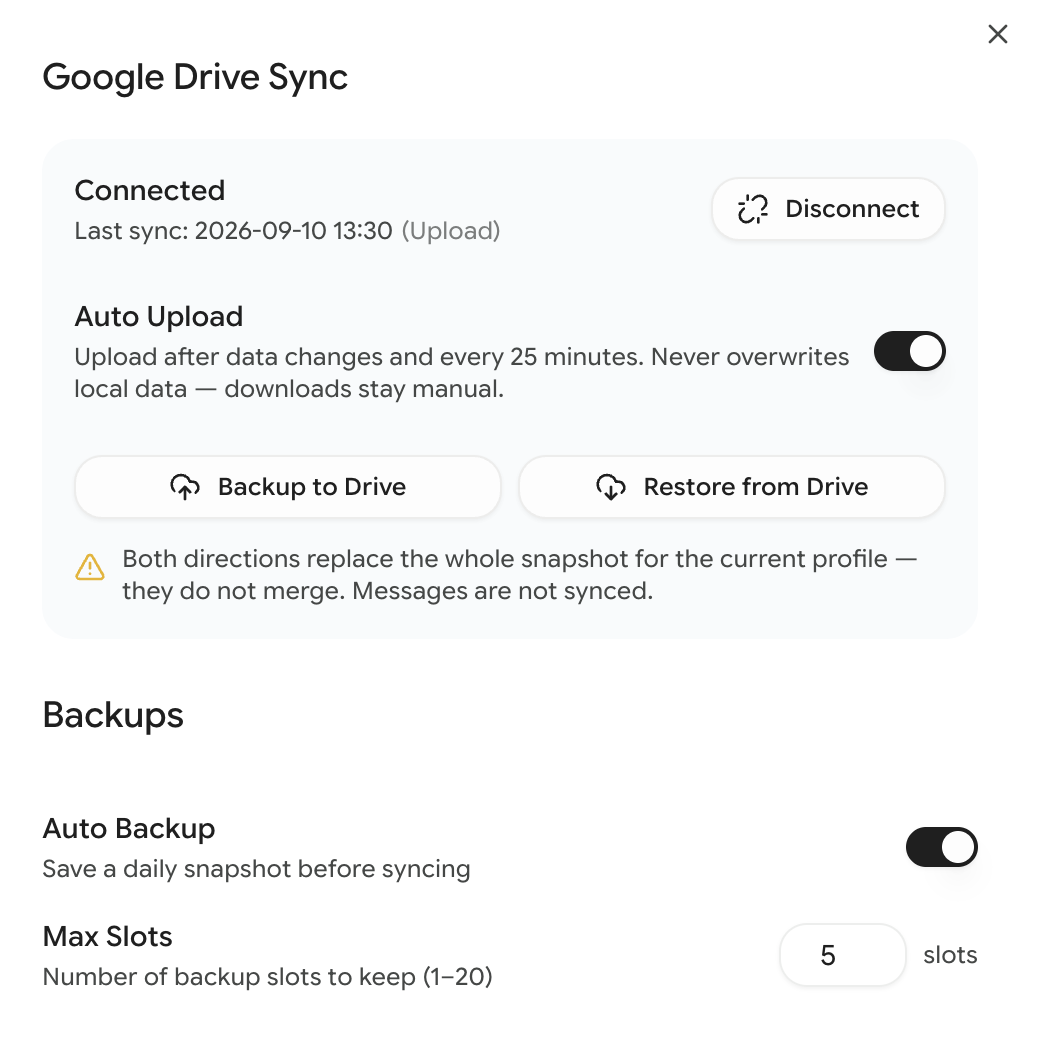
What Gets Synced
Messages are deliberately excluded. They're by far the largest part of the database and they can always be re-read from the platform, so syncing them would make every upload slow for very little benefit. Practically: after restoring on a new machine you'll have your whole structure, but full-text search will be empty until messages are recorded again. See Search.
Connecting
- Settings → Data & Storage → Google Drive Sync
- Click Connect Google Drive
- Approve the Google sign-in prompt
The extension only asks for access to its own app-specific folder. It cannot see your other Drive files, and your data isn't sent anywhere except your own Drive.
How Syncing Actually Works
This is the part worth understanding, because it's deliberately asymmetric.
Uploads are automatic
Leave Auto Upload on and Better Sidebar pushes a fresh snapshot after your data changes, and again every 25 minutes. You don't have to think about it.
Downloads are always manual
Nothing ever comes down from Drive unless you click Restore from Drive. Your local database is treated as the source of truth, and the cloud is treated as a backup.
Earlier versions tried to merge the two sides automatically. It went badly — automatic merges can produce results nobody asked for, and the cloud silently winning is the worst possible failure mode for something you've spent months organizing. So now the rule is simple: your machine writes to the cloud on its own, the cloud never writes to your machine on its own.
Both directions replace, not merge
Backup to Drive replaces the whole cloud snapshot for the current profile. Restore from Drive replaces your whole local snapshot. Neither one merges.
Before a restore, Better Sidebar takes a local safety snapshot automatically, so a restore you regret is recoverable. See Backups.
When Two Devices Disagree
If the cloud copy changed on another device, automatic uploading pauses and you get a notice: "Cloud copy changed on another device."
Nothing is lost while it's paused — the sync is simply frozen so neither side can silently overwrite the other. You pick the direction:
- Upload — this device's data wins, the cloud is replaced
- Download — the cloud wins, this device is replaced
Once you choose, automatic uploads resume.
If you regularly use Better Sidebar on two computers, pick one as the primary and only ever upload from that one. Treat the second as read-only: download when you sit down at it, don't upload from it. Two machines both uploading is how you end up staring at a conflict notice trying to remember which one had the newer folder structure.
Per-Profile Snapshots
Sync is scoped to the active profile, not your whole install. Each profile gets its own snapshot in Drive.
That means multi-account users get independent cloud backups for each account — switch profile, and the sync panel is now talking about that profile's snapshot. See Multi-Account.
Disconnecting
Disconnect unlinks the Drive account. It stops automatic uploads and drops the stored token. It does not delete the snapshot already in Drive, and it does not touch your local data. Reconnect later and your snapshot is still there.
Practical Workflows
Setting up a new computer
- Install the extension and sign in to Gemini or AI Studio with the same Google account
- Settings → Data & Storage → Connect Google Drive
- Click Restore from Drive
- Your folders, tags, prompts and snippets come back
Then, if you want search to work on this machine, have the agent re-sync the conversations you care about.
Before anything risky
About to reset the database, import someone else's backup, or let the agent loose on a big reorganization? Click Backup to Drive first. Ten seconds now versus an afternoon of re-filing later.
Belt and braces
Drive Sync covers device loss. Local backups cover "I broke my own data five minutes ago" — they're automatic snapshots you can roll back to. Use both; they solve different problems.
Not Available?
If you see "Google Drive sync is not available in this browser", your browser doesn't expose the identity API the extension needs for Google OAuth. Firefox is the common case here. Use local backups and manual database export instead — both work everywhere.