
Prompts
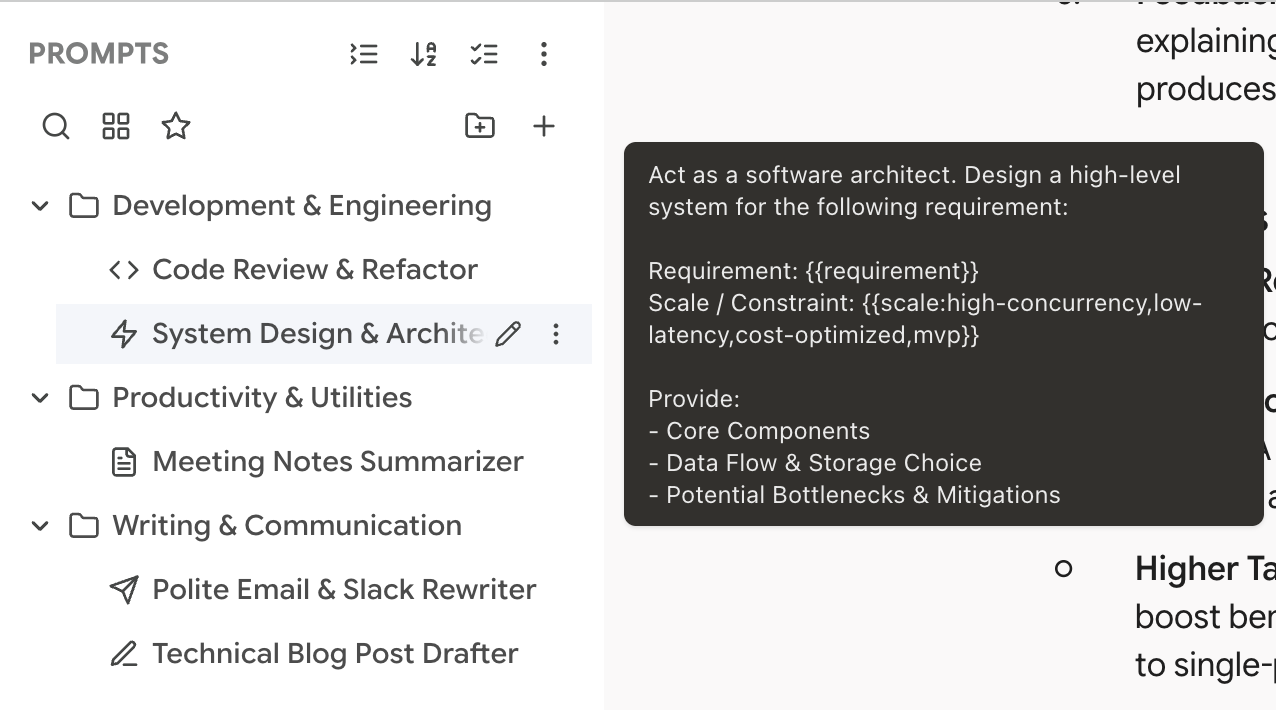
The Prompts tab is your personal prompt library — a place to save, organize, and reuse the prompts you find yourself typing over and over. Instead of copy-pasting from a text file or scrolling through old chats, you build a library once and access it instantly.
Creating a Prompt
Click the + button in the header toolbar (or right-click empty space → context menu won't help here, just use the + button). A creation modal appears with three fields:
Type
- System Prompt — Instructions meant for the AI's system context (e.g. "You are a code reviewer...")
- Normal Prompt — A user-facing prompt you send directly in the chat
The type affects the default icon and helps you filter later.
Title & Icon
Give your prompt a short, memorable title — this is what you'll search for when using slash commands. Click the icon button to pick from a grid of icons for visual distinction.
Content
The actual prompt text. This is where the magic happens — you can use plain text, or add variables and import references (see below).
Keep titles short and searchable. Something like "Code Review" or "Email Draft" works better than "My prompt for reviewing code that I use at work".
Variables
Variables turn a static prompt into a reusable template. When you use a prompt that contains variables, a fill-in form appears asking you to provide values.
Text variables
Use {{variableName}} for free-text input:
When used, you'll be prompted to fill in "tone", "recipient", and "topic" before the prompt is inserted.
Dropdown variables
Use {{variableName:option1,option2,option3}} for a predefined set of choices:
This renders as a dropdown select when the prompt is used — no typing, just pick.
Dropdown variables are great for prompts where you only ever use a few specific values. "Tone" with options like professional,casual,concise saves time and ensures consistency.
Prompt Composition (@import)
You can reference other prompts inside a prompt using the import syntax:
When this prompt is used, {{@import:General System Instructions}} is replaced with the full content of your prompt titled "General System Instructions".
Key details:
- Imports are resolved recursively (imported prompts can import other prompts)
- Circular references are detected and shown as
[circular: Title] - Missing references show as
[not found: Title]
Composition is powerful for building modular system prompts. Create a "base instructions" prompt, then import it into specialized variants. Change the base once, and all variants pick up the update.
Using Prompts
There are two ways to use a saved prompt:
Click to copy
Click any prompt in the tree. Its content is resolved (imports inlined, then variable fill form if needed), and the final text is copied to your clipboard. Paste it wherever you need.
Slash commands
Type / in the Gemini or AI Studio input field and your library appears inline:
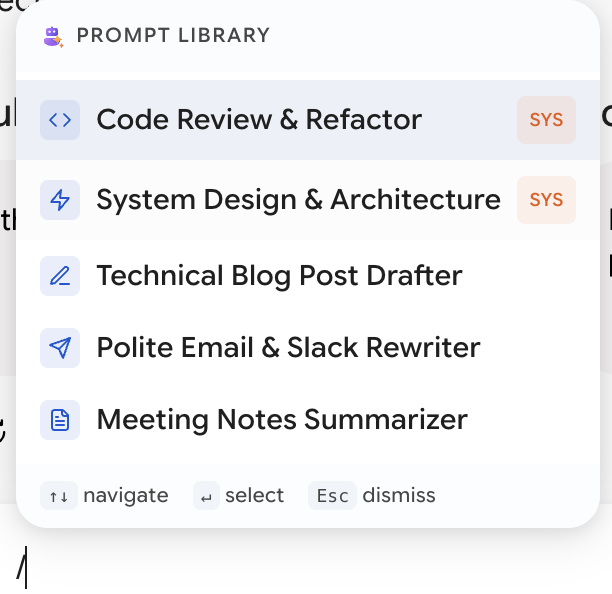
Keep typing to filter, arrow keys to move, Enter to insert. Full details in Slash Commands.
Slash commands are the fastest way to use prompts. Give your most-used prompts short titles that start with the keyword — review-code, not "My code review prompt" — because matching starts from the beginning of the title.
Save a prompt straight from a conversation
On Gemini, highlight any text in a conversation and the selection toolbar appears with Save as Prompt. It goes into your Prompts inbox immediately, so a good phrasing you improvised in a chat doesn't get lost.
Organization
The Prompts tab uses the same folder tree as the Library tab, so all the patterns are familiar:
- Folders — Create nested folders to group prompts by project, topic, or workflow
- Drag and drop — Move prompts between folders
- Rename — Right-click → Rename (folder or prompt title)
- Favorites — Star prompts to pin them to the top (and filter by ⭐)
- Sorting — Toggle between alphabetical and date-based order
Context menu actions (prompts)
Right-click a prompt for:
- Edit Prompt — Opens the edit form modal
- Copy Content — Copies resolved content (with variable fill if needed)
- Duplicate — Creates a copy in the same folder
- Add/Remove Favorites
- Rename — Inline rename
- Delete
Filtering
The filter bar offers:
- Search — Filter by prompt title
- Type filter — Cycle through All / Normal / System
- Favorites only — Show only starred prompts
Batch operations
Enter batch mode (☑ icon in header) to:
- Batch delete — Remove multiple prompts at once
- Batch move — Move multiple prompts to a target folder
Importing AI Studio System Prompts
On AI Studio, you can bulk-import your saved system instructions into the prompt library:
Open the overflow menu (⋮) → Import AI Studio System Instructions
This reads the system instructions AI Studio has stored for you, creates an AI Studio System folder, and imports each one as a system prompt. One click to bring existing work into an organized library.
Have the Agent Refactor Your Library
Once a prompt library grows past 30 or 40 entries it starts to rot — near-duplicates, prompts you can't find via /, the same "role + output format" preamble copy-pasted into a dozen places.
The agent has a built-in skill for exactly this. Type > in the chat input, pick Better Sidebar, and ask something like:
Clean up my prompt library: rename the ones that are hard to find via
/by putting the keyword at the start. Extract the repeated "role + output format" block into a shared prompt and import it into the others. If a variable only has a few fixed options, turn it into a dropdown.
It reads your actual prompts, proposes a plan, and asks before changing anything. Changes can be undone afterwards.
Practical Patterns
A few library layouts that hold up over time:
One folder per output shape. Email/, Code Review/, Summarize/. You reach for prompts by what you want out, not by what project you're in.
A _base folder for shared blocks. Put your standard role instruction, your standard output format, and your standard tone rules in there as separate prompts. Every real prompt imports the ones it needs. Change the tone rule once and all of them update.
Dropdowns for anything with fewer than six options. Tone, language, output length, seniority level. Typing professional for the four-hundredth time is a waste of a keystroke.
Keyword-first titles. translate-jp beats Japanese translation helper because /tr finds it instantly.