
Backups & Restore
Better Sidebar keeps everything in a local SQLite database. There are three separate safety nets, and they're worth telling apart:
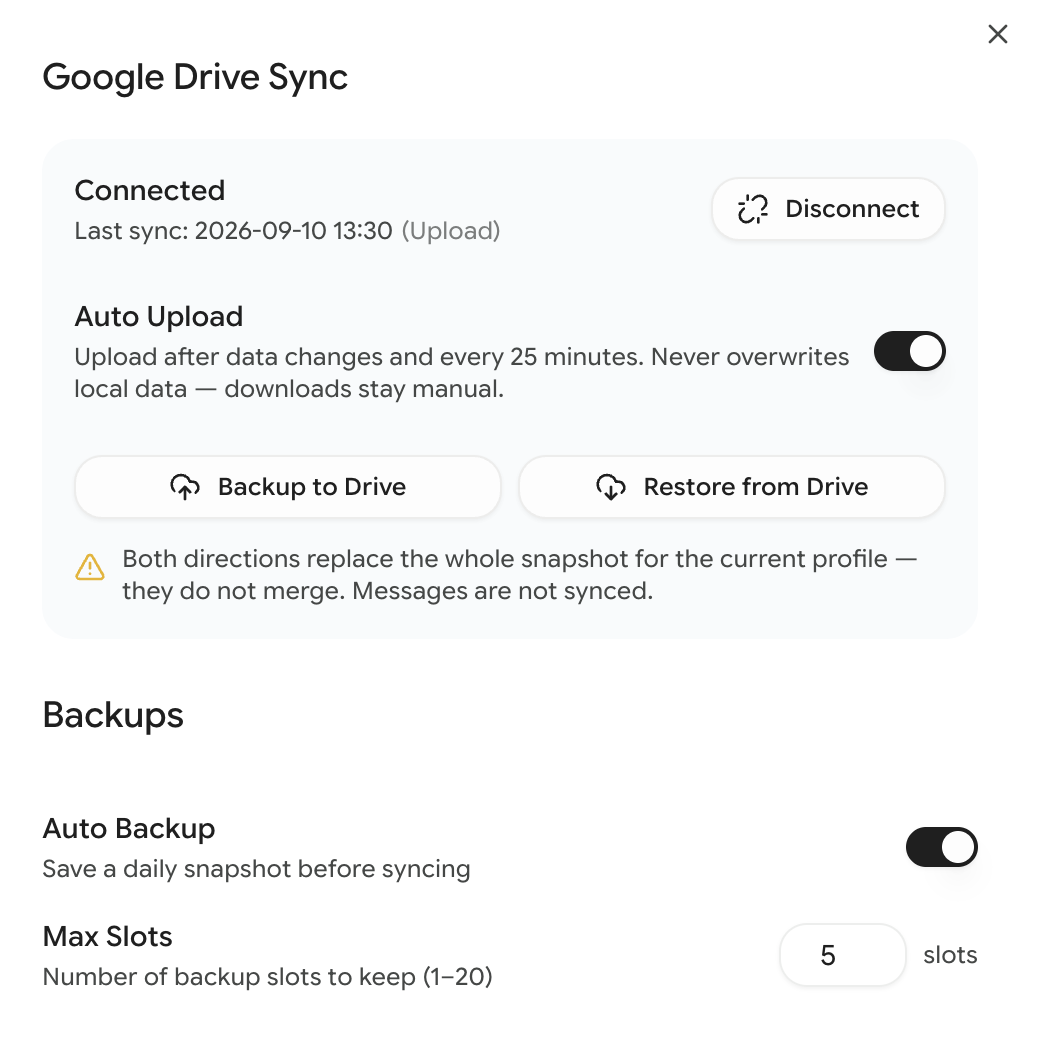
Everything below is in Settings → Data & Storage.
Local Backups
Better Sidebar snapshots your database automatically and keeps the last few, so you can roll back if something goes wrong.
Automatic snapshots
Auto Backup is on by default. A snapshot is taken before anything that could reasonably ruin your day, and each one is labelled with why it was made:
That "Before restore" one matters: even a restore you immediately regret is recoverable, because restoring itself creates a snapshot first.
Slots
Max Slots controls how many snapshots to keep, from 1 to 20. Default is 5. When the limit is reached, the oldest is dropped.
Five is fine if you're a normal user. Raise it to 10 or more if you let the agent make sweeping changes, or if you're actively restructuring a large library — more slots means a longer window to notice that something went wrong three days ago.
Viewing and restoring
Click View next to Backups to see the list, each with its timestamp, reason and size. Each entry offers:
- Restore — replaces your current local data with that snapshot
- Delete — removes that snapshot
You can also click Create Backup Now to take one on demand.
Restoring overwrites your current local data. Message content is not affected by a restore. And because a "Before restore" snapshot is taken first, you can undo a restore by restoring the snapshot it just made.
Database Export
Click Export to download the whole database as a .db file, named with today's date (ai-studio-backup-2026-09-11.db). It's a plain SQLite file containing everything:
- Folder structure and colors
- Tags and assignments
- Favorites, pins, descriptions
- Conversation metadata
- Recorded message content
- Prompt and snippet libraries
- Settings
Unlike Drive Sync, an export does include message content, so it's the only complete copy of your data.
Export is the right tool for moving to a different browser or machine, and for keeping a copy somewhere Google isn't involved. If you only ever do one backup thing manually, do this once a month.
Database Import
Click Import and pick a .db, .sqlite or .sql file. Better Sidebar replaces the current database with it and reloads.
Import is a full replacement, not a merge. Export your current data first if you might want it back.
Reset Database
Wipes all Better Sidebar data for the active profile: folders, tags, favorites, conversation metadata, recorded messages, prompts, snippets. Your conversations on Google's servers are untouched — only the extension's own organization is destroyed.
A confirmation dialog appears, and the button is styled as destructive because it is.
Reset does not clear your Drive backup. If you reset locally and then want the cloud copy gone too, click Backup to Drive afterwards to overwrite the cloud snapshot with the now-empty database.
Per-Profile Scope
All of the above operates on the active profile. Each profile has its own database, its own backup slots, and its own Drive snapshot. Switching profile switches what these buttons are talking about. See Multi-Account.
What a Sensible Setup Looks Like
- Leave Auto Backup on, slots at 5 or higher
- Connect Drive Sync and leave Auto Upload on
- Export manually before anything unusual — a big migration, trying a beta build, handing your laptop to IT
That covers self-inflicted damage, device loss, and browser-level weirdness, and after the initial setup it costs you nothing.