
Gems
The Gems tab gives you a dedicated space to manage all your Gemini Gems — those custom AI personas you've crafted for specific tasks. Instead of hunting through Gemini's native UI, you get a clean, filterable tree view of every gem you own, plus quick actions to start chats, edit, or create new ones.
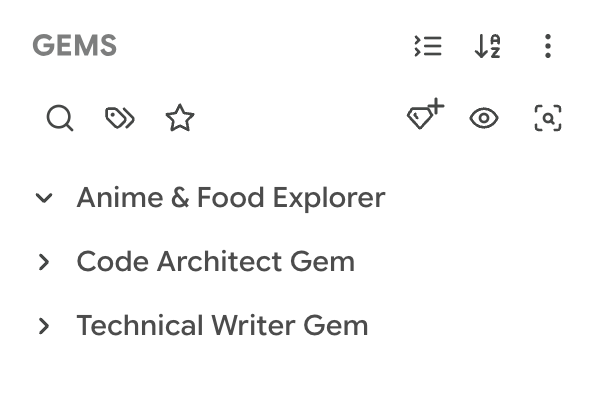
This tab is exclusive to Gemini. If you're on AI Studio, you won't see it in the sidebar — Gems are a Gemini-only feature.
Scanning Your Gems
Better Sidebar doesn't automatically know about all your gems on first install. You need to run a scan to import them.
Click the Scan button (🔍) in the header toolbar. The extension calls Gemini's internal API to fetch your full gem list and stores them locally. A loading spinner shows while the scan runs — usually takes just a few seconds.
After scanning, your gems appear as expandable folders in the tree. Each gem shows its name and can be expanded to reveal conversations you've had with that gem.
Run a scan after creating new gems on gemini.google.com. The extension auto-refreshes when you create a gem through Better Sidebar, but gems created in the native UI need a manual scan to appear.
Browsing & Filtering
Search
Click the search icon in the filter bar to open an inline text field. Type a gem name and the list prunes instantly — only gems matching your query remain visible.
Tag filter
If you've tagged your gem conversations, use the tag filter to narrow down the list. Only gems (or their child conversations) with matching tags will show.
Favorites only
Toggle the ⭐ button to show only gems or gem conversations you've favorited. Great for quick access to your most-used personas.
Sorting
The sort button in the header toggles between:
- Alphabetical (A-Z) — gems sorted by name
- Date (clock) — gems sorted by most recent activity
Working with Gems
Starting a new chat
The fastest way: right-click a gem → New Gem Chat. This navigates you to a fresh conversation with that gem pre-selected as the persona. You can also hover over a gem and use the three-dot menu.
From anywhere in the sidebar, the dropdown arrow on the New Chat button also offers New Gem Chat. Clicking it reuses your last gem; right-clicking opens a searchable picker.
Hiding a gem
Right-click → Hide Gem removes it from your sidebar without touching Gemini. Run a scan again to bring it back. Use this for gems you made once and never use — it's the reversible alternative to deleting.
Opening the gem page
Right-click → Open Gem takes you to the gem's configuration/landing page on Gemini. Want to keep your current tab? Use Open in New Tab instead.
Editing a gem
Right-click → Edit Gem navigates to gemini.google.com/gems/edit/{id} where you can change the gem's instructions, name, or avatar.
Copying a gem
Right-click → Copy Gem navigates to Gemini's gem duplication page. Useful when you want to create a variant of an existing gem without starting from scratch.
Deleting a gem
Right-click → Delete Gem. A confirmation dialog appears before anything happens. Deletion removes the gem from both your local sidebar and Gemini's servers.
Deleting a gem is permanent. The gem and its configuration are gone from Gemini entirely — not just hidden from Better Sidebar. Conversations you had with the gem remain, but you can't use the gem for new chats.
Default Folders — File Gem Chats Automatically
This is the feature worth setting up on day one.
Right-click a gem → Set Default Folder, and pick a folder. From then on, every new chat you start with that gem is placed in that folder automatically. No dragging, no filing, no weekly triage for that category ever again.
You can also do it from the other direction: open Folder Settings on any folder and add the gem under Default target for. The folder settings panel lists everything currently pointed at it, so you can bind and unbind from either side.
Once a folder has a default gem attached:
- Its hover action bar gains a button that starts a chat with that gem directly
- Its dropdown menu gains New Gem Chat
Think of it as a filing rule. A "Code Review" gem pointed at a "Code Reviews" folder means that entire category of work files itself forever. If you have five gems you use regularly, five minutes of setup here removes most of your ongoing organizing work.
Gem Conversations
Expand any gem to see the conversations you've had with it. These child items work exactly like conversations in the Library tab:
- Click to navigate to the conversation
- Right-click for the full context menu (rename, move, tag, export, delete)
- Favorite them for quick access
- Tag them for organization
Creating New Gems
Two ways to create a gem:
- From the header — Click the gem+ icon (💎+) to navigate directly to
gemini.google.com/gems/create - From the empty state — If you have no gems yet, the empty state shows a "Create Gem" button
After creating, run a scan to see it appear in your tree.
Viewing All Gems
Click the eye icon (👁) in the header to navigate to Gemini's native gems overview page at gemini.google.com/gems/view. Useful for seeing gem details that aren't shown in the sidebar's compact view.
The Gems tab is most valuable when you have 5+ gems. If you only have one or two, the Library tab's type filter (set to "Gems") works fine. But once your collection grows, having a dedicated tab with search and sorting makes finding the right persona instant.