
Library
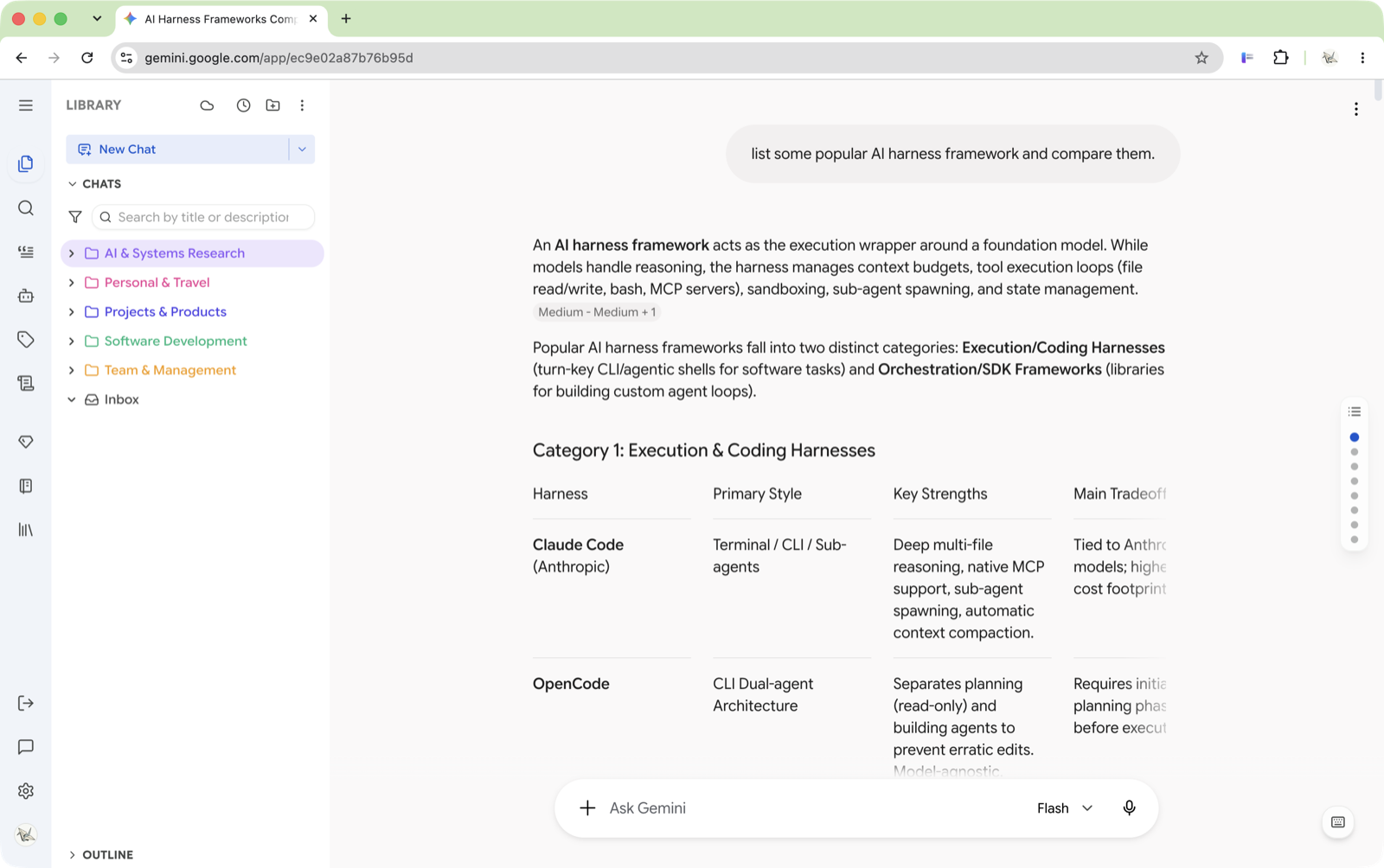
The Library tab is your home base. Every conversation you have on Gemini or AI Studio shows up here, and this is where you turn a chaotic chat list into a well-organized library.
Overview
The Library tab has a few layers stacked top to bottom:
- Header toolbar — Quick actions like Collapse All, Sort, Batch Mode, New Folder, and New Chat
- Filter bar — Toggle search, tag filter, type filter, and favorites-only mode
- File tree or timeline — Your conversations and folders, displayed as either a draggable tree or a time-grouped list
- Batch toolbar — Appears when you enter batch selection mode
- Outline — A collapsible panel at the bottom showing the structure of the conversation you're currently reading. See Outline.
You can switch between two view modes at any time:
- Tree View — A folder hierarchy you control. Drag conversations around, nest folders, assign colors.
- Timeline View — Conversations grouped automatically by when you last used them (Today, Yesterday, Last 7 Days, etc.)
Tree View is best for long-term organization. Timeline View is great for quickly finding "that conversation from yesterday" without any setup.
Folders
Folders are the backbone of your organization system. You can nest them, color them, and drag things in and out freely.
Creating a folder
You have a few ways:
- Click the folder+ icon in the header toolbar
- Right-click any empty space in the tree → New Folder
- Right-click an existing folder → New Folder (creates a nested subfolder)
The folder is created with a default name and immediately enters rename mode — just type and press Enter.
Renaming
Right-click a folder → Rename, or press F2 with the folder focused. Folder Settings in the same menu lets you rename and recolor in one place.
Coloring folders
Colored folders make scanning your sidebar much faster. Right-click a folder → Change Color to pick from the 12-colour preset palette, or open the custom picker for any hex value.
The color tints the folder icon and gives the row a subtle background band, so you get a visual cue at a glance.
Use colors to separate life areas — e.g. blue for work, green for personal projects, orange for learning. It sounds simple, but it makes a huge difference once you have 50+ conversations.
Pinning folders to the top
Right-click a folder → Pin to Top. Pinned folders stay above everything else in their container regardless of the current sort order. Unpin puts them back into normal order.
This is the fix for the "my active project keeps sliding down the list" problem — pin the two or three folders you're living in this month.
Reordering
Drag folders to reorder them within their parent. Sort order still applies to unpinned, unmoved items, but an explicit drag wins.
Nesting
Folders can go multiple levels deep. Drag a folder onto another folder, or create one via right-click inside a parent. There's no hard limit on depth, but two or three levels is usually plenty.
Default folder for a Gem or Notebook (Gemini)
Open Folder Settings on any folder and you'll find Default target for. Add a Gem or a Notebook here, and every new chat you start from that Gem or Notebook lands in this folder automatically — no manual filing.
Once a folder has a default target, its hover action bar gains a shortcut button that starts a new chat with that Gem or Notebook directly. The folder's dropdown menu also gets New Gem Chat and New Notebook Chat entries.
This is the single biggest time-saver if you use Gems seriously. Point your "Code Review" Gem at a "Code Reviews" folder once, and you never file another one of those chats by hand.
Deleting
Right-click → Delete. One guardrail: you can't delete a folder that still has conversations inside it. Move or batch-delete the conversations first. This prevents accidental data loss.
Conversations
Every conversation from Gemini or AI Studio appears as a file in your tree.
Opening a conversation
Click it. That's it — the page navigates to that conversation. Want to keep your current chat open? Right-click → Open in New Tab.
Hover tooltip
Hover over any conversation and a tooltip shows what the row itself has no space for: your description, its tags, when it was created, and when it was last active.

That last-active timestamp is genuinely useful for triage — it's how you spot the folder full of chats nobody has touched since March.
Descriptions
Right-click → Edit Description to attach a note to a conversation. It shows up in the hover tooltip and is searchable from the Library tab's text filter.
Titles are written by the model and are often vague ("Understanding the Concept"). A one-line description in your own words fixes that without renaming anything.
Renaming (True Rename)
Right-click → Rename, or press F2 with the conversation focused. Type the new name and press Enter.
This isn't just a local label — Better Sidebar syncs the rename to Google's servers in real time. The title updates everywhere, including when you open the chat without the extension installed.
Keyboard handling in the tree
The tree behaves like a file manager once a row is focused:
Locating the current chat
Deep in a nested tree and lost track of where you are? Open the ⋯ menu → Locate Current Chat. The tree expands every ancestor folder and scrolls the active conversation into view.
Favorites & Pinning
Right-click a conversation → Add to Favorites. Favorited conversations float to the top of their folder (or the root), marked with a ⭐.
To remove: right-click → Remove from Favorites.
You can also click the star icon that appears on hover in the action bar.
Combine favorites with the "Favorites only" filter button for a quick-access shortlist of your most important chats.
Moving conversations
Two ways:
- Drag and drop — Just grab it and drop it into a folder (Tree View only)
- Right-click → Move To — Opens a folder picker dialog, useful when your target folder is collapsed or far away in the tree
Tagging
Right-click a conversation → Tags — you'll see a submenu with checkboxes for all your tags. Check or uncheck to add/remove.
If you have multiple conversations selected (via multi-select in the tree), tagging applies to all of them at once.
Tags and folders serve different purposes. Folders = "where does this live?" Tags = "what is this about?" A conversation can only be in one folder but can have many tags.
Exporting a single conversation
Right-click → Export → choose a target: plain text, Markdown, JSON, Obsidian, or Notion. See Export for the details of each.
Deleting (True Delete)
Right-click → Delete. A confirmation dialog appears. This is a real server-side deletion — the conversation is removed from Google's servers, not just hidden locally. No more ghost chats that keep reappearing.
Deletion is permanent. There's no undo. Export the conversation first if you might want it later.
If you find the confirmation dialog slow, Settings → General → Behavior has a Delete conversations without confirmation switch. It's off by default, and worth leaving off: with it on, a single click deletes immediately and permanently on both sides. Batch delete still asks either way.
Hiding instead of deleting
Some items offer Hide instead of Delete. Hiding removes the item from your sidebar without touching anything on Google's side — and you can bring it back by running Import Chat List again. It's the safe option when you just want a cleaner tree.
New Chat
Quick creation
Click the New Chat button (pencil+ icon) in the header toolbar. If a folder is selected, the new conversation lands inside it.
That button does three different things depending on how you click:
The dropdown arrow next to it adds New Gem Chat and New Notebook Chat (Gemini). Clicking those uses your last-used Gem or Notebook; right-clicking opens a searchable picker.
Temporary chats
A temporary chat is for throwaway work — testing a prompt, a quick one-off question — and it never appears in your file tree, so it doesn't pollute your organized library.
Be aware of what "temporary" means here. On AI Studio the chat is still saved to your AI Studio Drive by Google; Better Sidebar simply keeps it out of your tree. It's tidiness, not privacy.
New Chat in a folder
Hover over any folder and click the chat+ icon in its action bar. This creates a chat directly inside that folder regardless of what's currently selected. If the folder has a default Gem or Notebook attached, an extra button starts a chat with that instead.
Pre-naming your chat
When you create a new chat, a temporary entry appears in the tree with an editable text field. You can type a title before the conversation even exists on Google's servers. Once the first message is sent, Better Sidebar renames the conversation to your custom title.
If you leave it empty, the AI-generated title is used as usual.
Pre-naming is great for work logs. Create a chat called "2024-06-16 Debug session" before you even start typing, and it'll be properly labeled from the beginning.
Filtering & Sorting
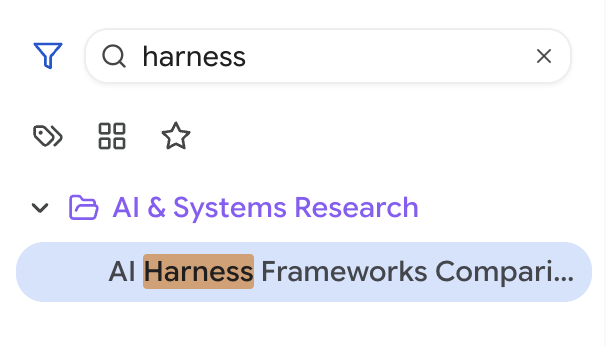
When your library grows beyond a screenful, filters become essential. The filter bar sits just below the header and offers four toggles:
Text search
Click the 🔍 button (or use the hotkey) to open an inline search field. As you type, the tree prunes to show only conversations and folders that match your query. Folders are kept visible if any of their children match.
This is a quick local filter — for full-text search across message content, use the dedicated Search tab.
Tag filter
Click the tag icon to expand a tag selector. Pick one or more tags, and only conversations with those tags remain visible. Useful when you've tagged conversations by project or topic.
Type filter
Click the grid icon to cycle through types:
- All (default) — show everything
- Conversations — only chat conversations
- Images — only text-to-image generations
- Gems — only Gem conversations (Gemini)
- Notebooks — only notebook entries (Gemini)
Favorites only
Click the ⭐ button to show only your favorited conversations. Combine this with tag filters for very precise results.
Sorting
The sort button in the header toggles between:
- Date (clock icon) — Most recently active conversations first. Folders are still sorted alphabetically.
- Alphabetical (A-Z icon) — Everything sorted by name.
In both modes, favorited items always float to the top within their container.
A typical workflow: set sort to "Date" for your active project folder so your latest work stays at the top, but keep the root level sorted alphabetically so you can find folders by name.
Batch Operations
When you need to clean up, reorganize, or tag a bunch of conversations at once, batch mode is your friend.
Entering batch mode
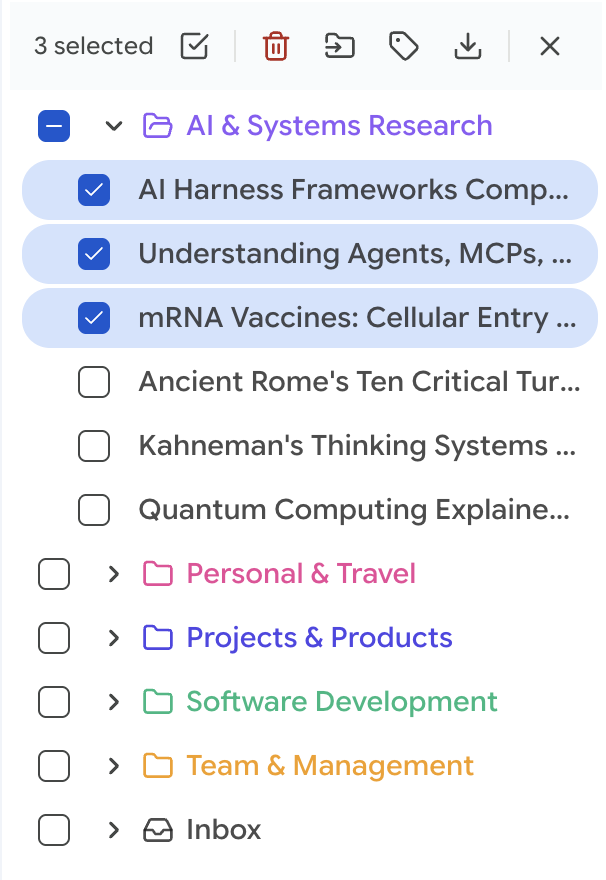
Click the checklist icon (☑) in the header toolbar. The tree switches to checkbox mode — every item gets a checkbox.
Selecting items
- Click any item to toggle its checkbox
- Click a folder's checkbox to select/deselect all conversations inside it
- Click Select All in the batch toolbar to grab everything visible (respects current filters)
- Folders show an indeterminate state (—) when some but not all children are selected
Batch actions
The batch toolbar at the bottom shows your selected count and offers:
Batch delete shows live progress (Deleting 14/60…) and can be cancelled mid-run — already-deleted items stay deleted, the rest are left alone.
The folder picker
Both Move To and batch Move open the same dialog. It has a search box, so you don't have to scroll a large tree — type part of the folder name and pick it. There's also a New Folder button in the dialog, so you can create the destination without backing out first.
Exiting batch mode
Click the X in the batch toolbar, press Alt+Shift+B, or click the checklist icon in the header again.
Filters apply to Select All, which is what makes batch mode powerful. Filter to one tag, select all, move them into a folder — a whole category reorganized in three clicks. Same trick with the type filter to sweep every image generation into an "Images" folder.
View Modes
Tree View
The default. Your folders and conversations form a draggable hierarchy. You control exactly where everything lives.
Key features exclusive to Tree View:
- Drag and drop (reorder, move into folders)
- Nested folder creation
- Canvas right-click → New Folder
- Folder tint rows (colored background bands)
Timeline View
Switch via the overflow menu → Switch to Timeline View (or the calendar icon).
Conversations are automatically grouped into time buckets:
- Today
- Yesterday
- Previous 7 Days
- Previous 30 Days
- Older (grouped by month, e.g. "May 2025")
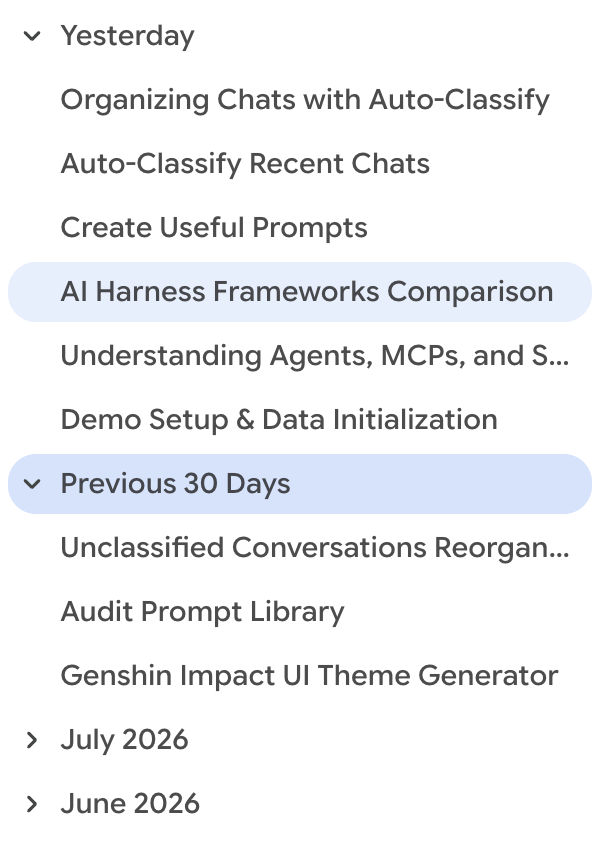
Drag and drop is disabled in Timeline View. All other features (right-click actions, filtering, batch mode) still work.
Timeline View is ideal for a "what did I do this week?" review, or for finding a conversation when you remember when you had it but not what you called it.
Compact Mode
Compact Mode hides the sidebar's icon bar entirely, leaving just the tree. Fewer buttons, more room, less to look at.
Turn it on from the ⋯ menu → Enter Compact Mode, or just click the LIBRARY title in the header — clicking it toggles compact mode either way. Click again to come back.
Compact Mode plus Zen Mode gets you about as close to a plain text editor as Gemini gets. Worth a try for long writing sessions.
Keeping the Tree in Sync
Better Sidebar needs to know about your conversations before it can organize them.
Automatic
When you visit Gemini or AI Studio, the extension picks up recent conversations on its own. For day-to-day use you don't have to do anything.
New conversations land in Inbox by default, so they're never lost — they just wait there until you file them.
Import Chat List
Only recent conversations get picked up automatically. To pull in the full list, open the ⋯ menu → Import Chat List. The extension walks your conversation list and imports every title and its metadata.
This imports titles and metadata only (conversation ID, creation date, type). It does not download message content — that's a separate step, because it's much slower.
Getting message content
Message content is what full-text search, export and the outline all need.
- AI Studio — bulk import from a Google Drive export. See Search → Import Chat History.
- Gemini — content is recorded as you open each conversation. To catch up in bulk, ask the agent to sync them: "Check how many chats have no saved messages, then sync the latest 30."
Ignoring folders
Settings → Library → Ignored Folders takes a comma-separated list of folder names to hide from the tree completely. Handy for archives you never want to see but don't want to delete.
Right after a full import is the best moment to organize. Enter Batch Mode, filter, and sweep things into folders — or hand the whole job to the agent and go get coffee.