
Smart Scrollbar
Long conversations are hard to navigate because the scrollbar tells you nothing. The Smart Scrollbar replaces it with a map of the actual conversation: one entry per message, the one you're reading highlighted, click to jump.
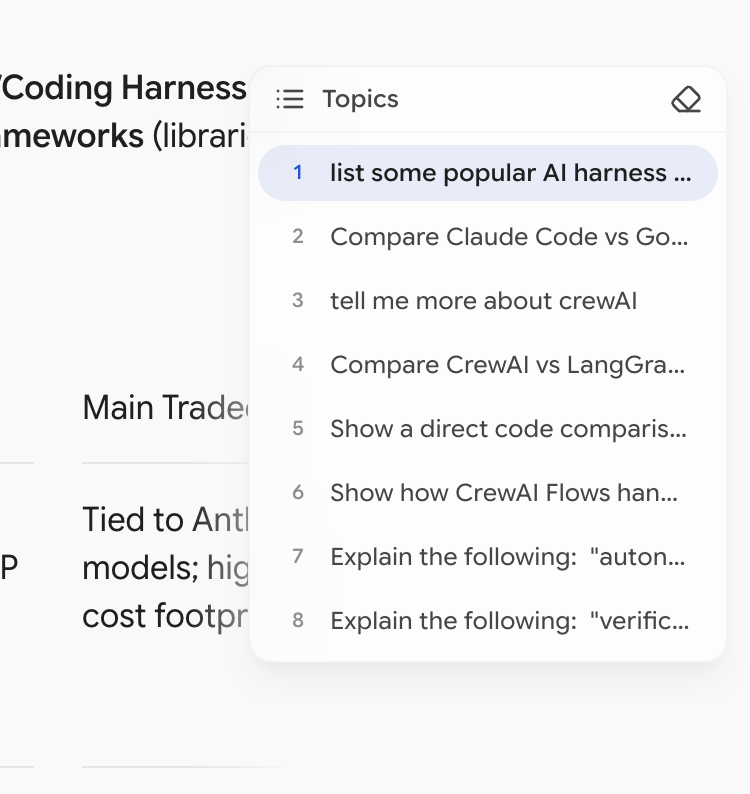
Gemini only. AI Studio renders conversations differently and isn't supported. On either platform you can use the Outline instead, which goes deeper — it maps headings, code blocks and tables inside each answer, not just the messages.
Turning It On
It's on by default. The switch is at Settings → UI Controls → Additional Features → Smart Scrollbar, or in the Gemini tab of the browser toolbar popup.
Three Sizes
The panel has three states, and you switch between them with the buttons on its header.
Compact (default)
A narrow strip of message entries with short previews. Enough to tell messages apart, small enough to ignore. This is where you'll leave it.
Expanded
Click the expand button and it becomes a full Conversation Outline — wider panel, longer previews, clearer separation between your messages and the model's, with a total message count in the header.
Worth switching to when a conversation passes fifty messages and short previews stop being distinguishable.
Collapsed to icon
Click the collapse button and it shrinks to a small floating icon with a message count badge. Click it to bring the panel back.
Use this when you want the screen clear but don't want to dig into settings to turn the feature off.
Navigation
Click any entry to scroll smoothly to that message. As you scroll the page normally, the highlight tracks your position — the map and the page stay in sync in both directions.
This earns its keep in long debugging or code-review sessions, where you constantly need to compare the model's fifth attempt against its first. Clicking an entry is instant; scrolling for it takes ten seconds and breaks your train of thought.
When the Outline Doesn't Match the Page
Occasionally the entries won't line up with what's actually on screen — usually after branching a conversation, or after Gemini re-renders something in an unexpected way.
When that happens, a small clear button appears at the top of the Smart Scrollbar. Clicking it deletes the messages Better Sidebar has saved for the current conversation only and reloads the page so they're captured again from scratch.
This clears the extension's saved copy of that conversation's messages, which means those messages temporarily drop out of full-text search until they're re-captured on reload. The conversation on Gemini itself is untouched. If the extension detects anything unexpected while cleaning up, it aborts rather than risk your data.
Pairs Well With
- Zen Mode — wide chat, no chrome, and a map on the side
- Outline — when you need to find a specific code block or heading rather than a message
- Selection Toolbar — jump to a message, highlight the good part, save it as a snippet