
Platform Manager
Click the Better Sidebar icon in your browser toolbar and you get a small panel with three tabs. It's the fastest way to reach platform settings, and the only place to switch the extension off for one site.
Platforms Tab
One switch per supported site:
Turning a platform off stops Better Sidebar from running on that site entirely — no sidebar, no injected features, nothing. The site behaves as if the extension weren't installed.
Your data isn't touched. Turn it back on and everything is where you left it.
This is the right control for "I want Better Sidebar on Gemini but AI Studio should stay stock", or for temporarily ruling the extension out while debugging something odd on a page. It's a cleaner test than disabling the whole extension, because your other site keeps working.
Don't confuse this with Switch to Original Sidebar (Alt+Shift+Q). That swaps the sidebar UI but keeps everything else — data capture, slash commands, the agent — running. Turning a platform off here shuts all of it down.
Gemini and AI Studio Tabs
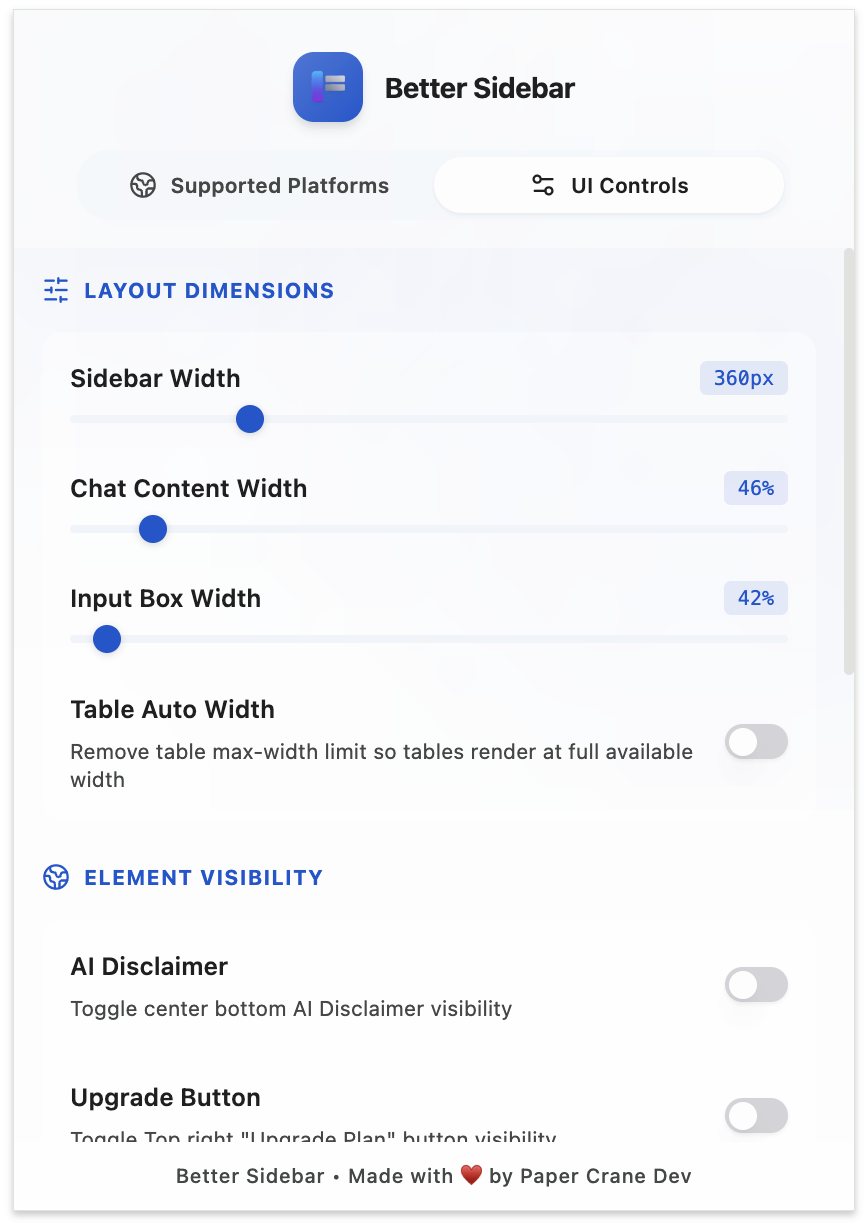
These mirror Settings → UI Controls for each platform: widths, element visibility, and feature toggles. Same values, same effect — it's the same underlying setting, just reachable without opening the sidebar first.
The tab for your current site is selected automatically when you open the popup.
For what each control does, see Layout & Width.
Slash commands live here only
One toggle exists in the popup and nowhere else: Slash Commands, for each platform. If you want to stop / from opening your prompt library, this is where you do it. See Slash Commands.
Platform Differences
The two sites are built differently, so the feature sets aren't identical.
The shared core — organizing, searching, prompts, snippets, the agent — works the same on both. The differences are all in platform-specific UI that only exists on one side.
Settings Are Per-Platform
Each platform stores its own values. A 450px sidebar on Gemini and a 300px sidebar on AI Studio coexist happily; visiting each site applies the right one automatically.
All of it is saved instantly and included in database exports and Drive backups.