
Themes
Better Sidebar restyles the whole page, not just its own panel. Pick a theme and Gemini or AI Studio changes with it — backgrounds, text, accents, and in several themes the typography too.
Settings → Themes
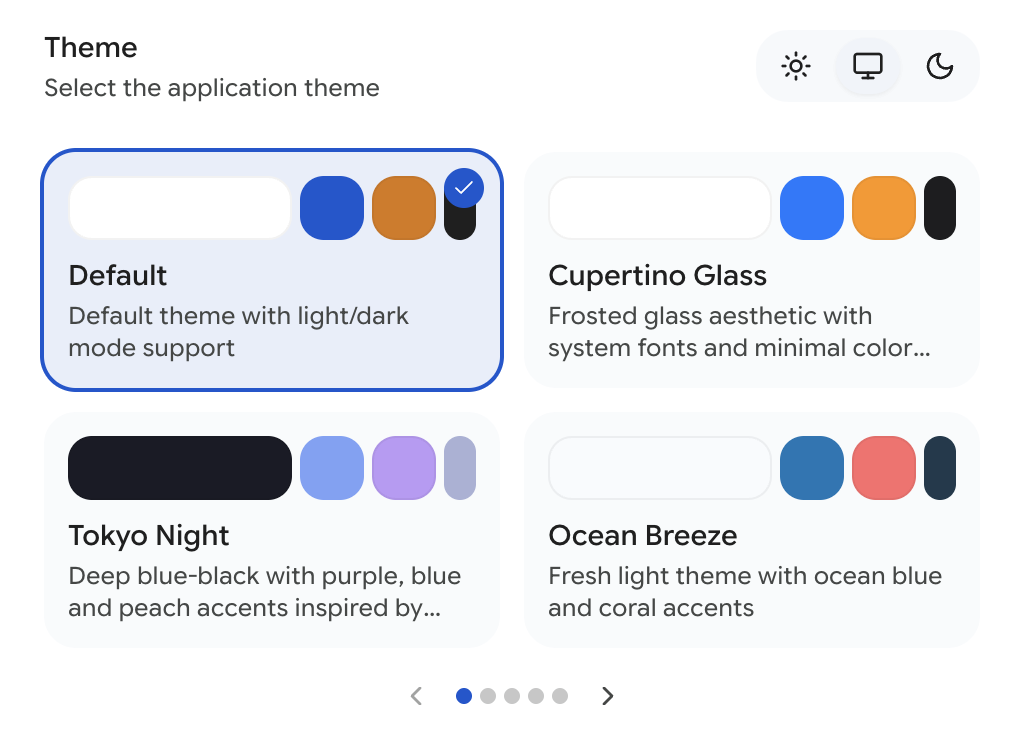
Default
The stock look. Neutral, clean, and the only theme with a light/dark/system switch:
- Light — light backgrounds, dark text
- System — follows your OS appearance setting
- Dark — dark backgrounds, light text
Free, and the fallback everything else reverts to.
The 19 Presets
Every preset has a fixed light or dark palette, because the whole point of a designed theme is that the designer picked the colours. The mode switch doesn't apply to them.
Dark
Light
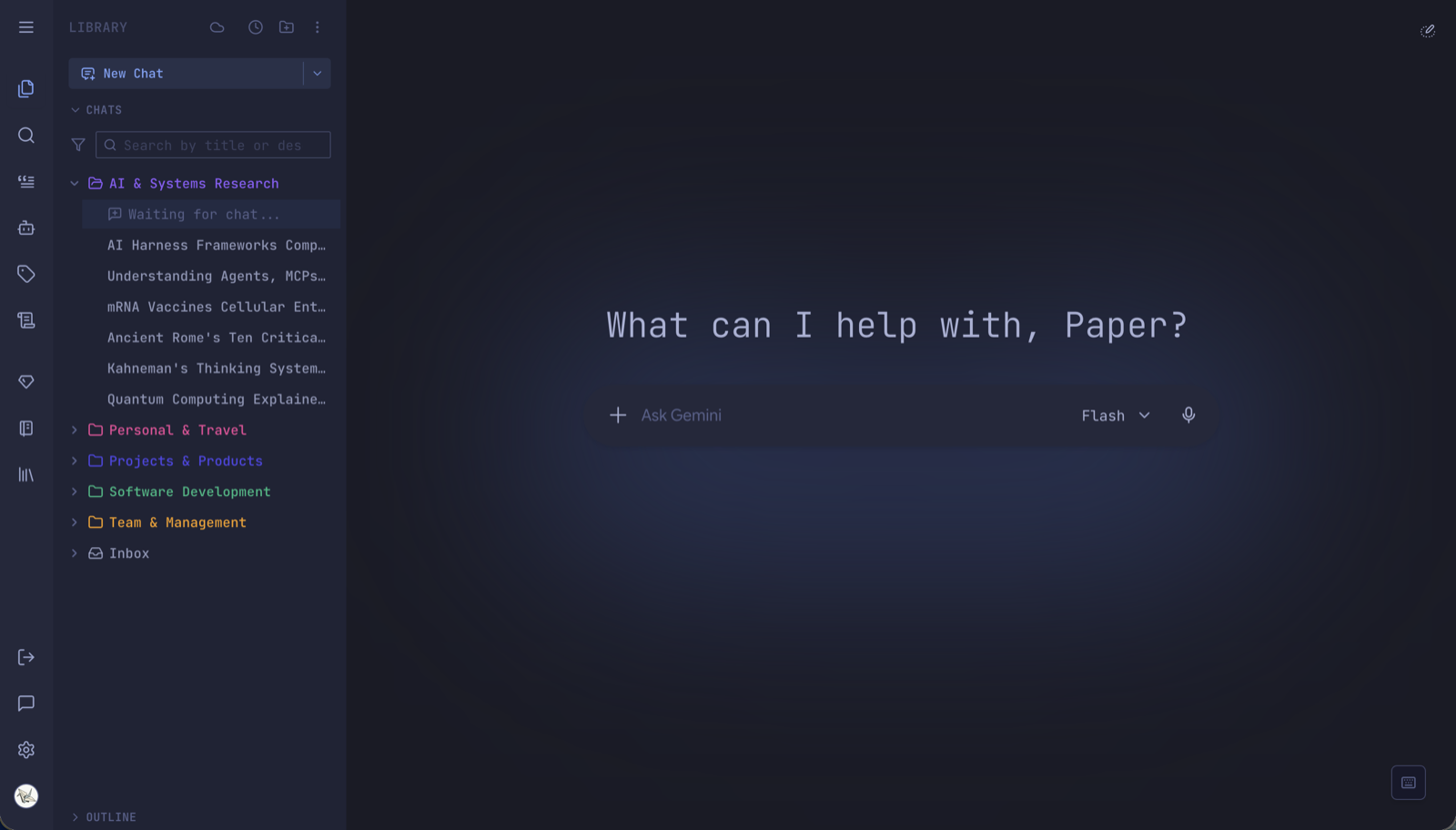
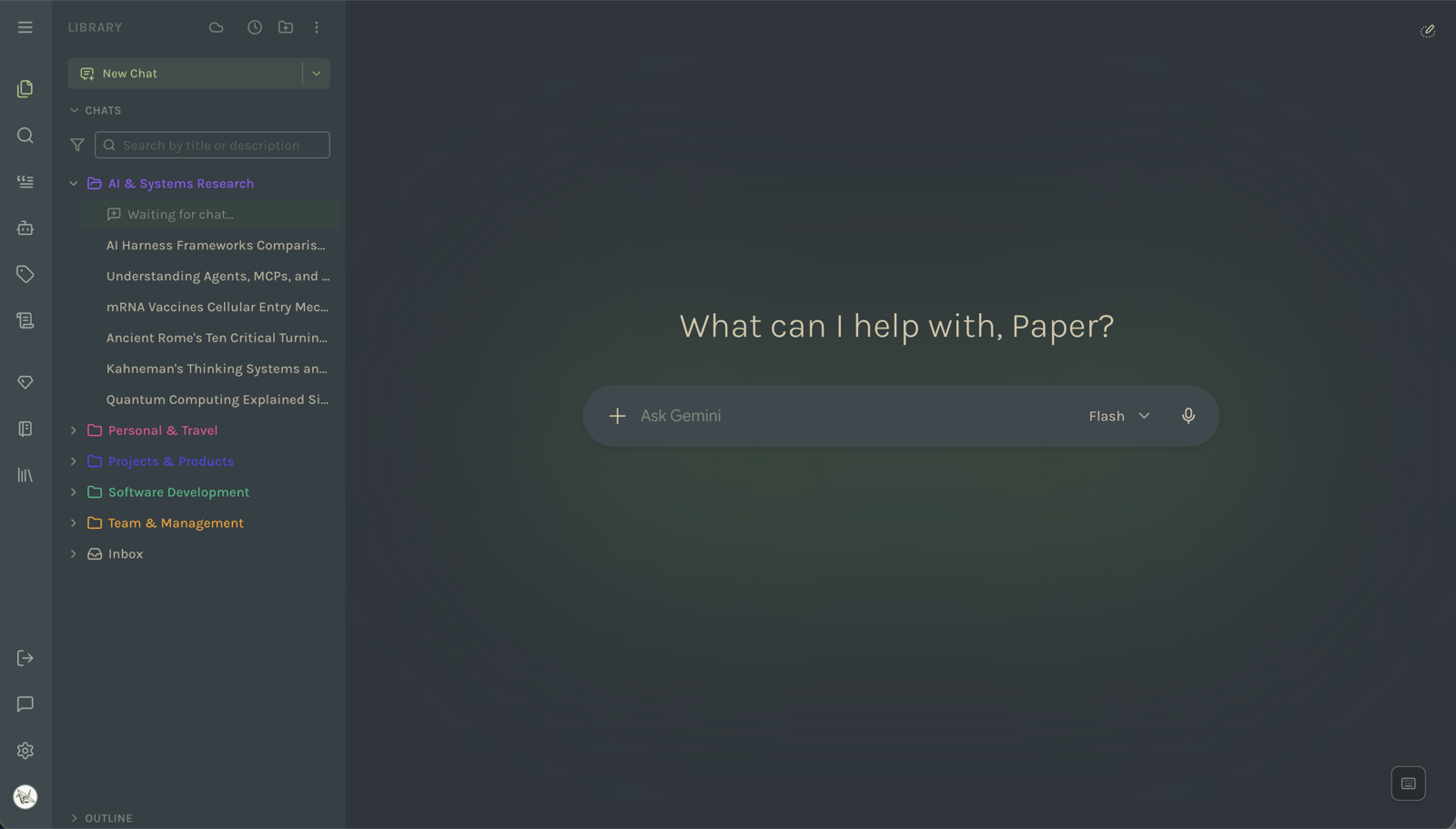
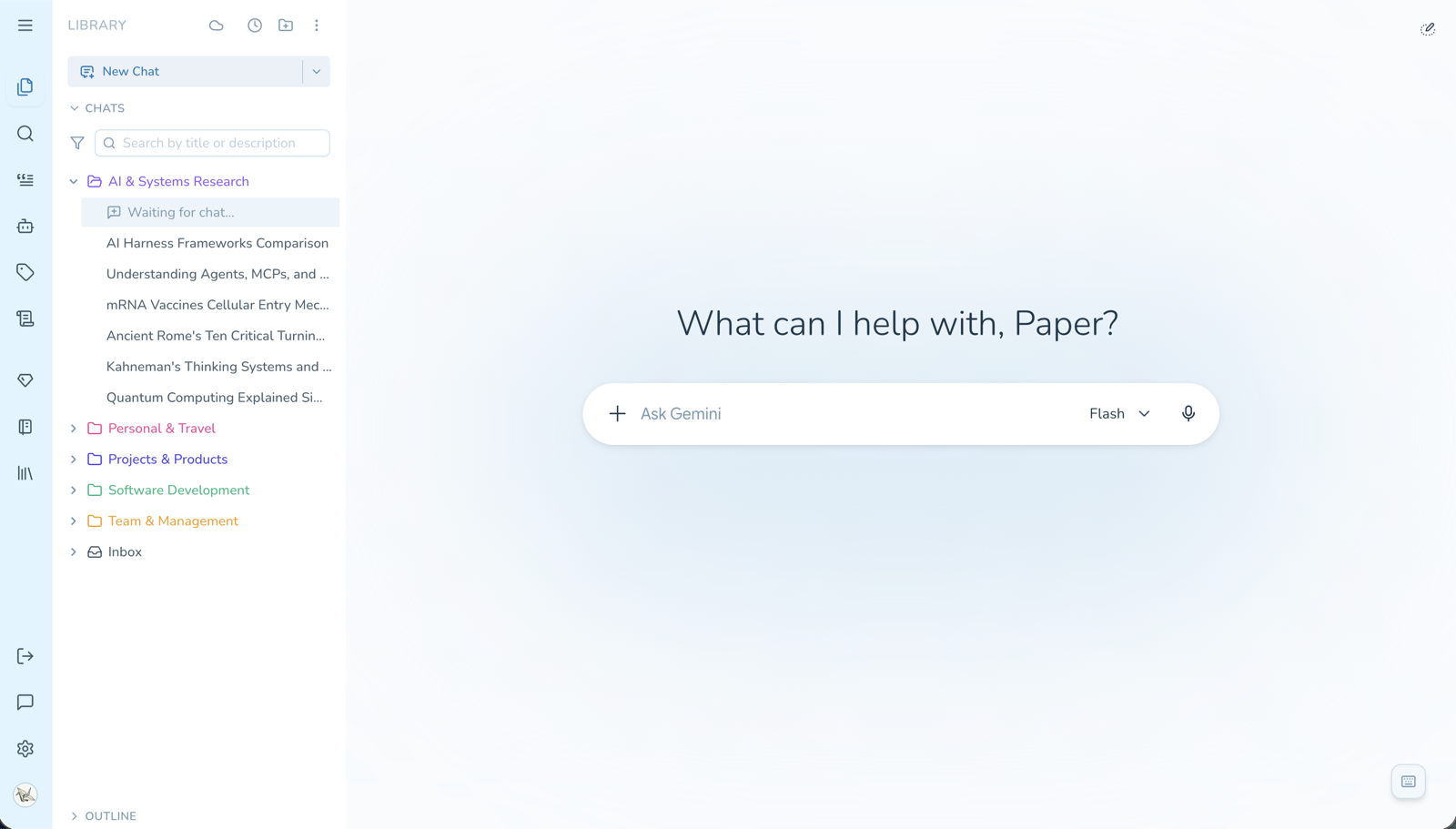
Themes aren't purely decorative. Paper & Ink and Grimoire use serif typography and warmer backgrounds, which genuinely helps on long reading sessions. High Contrast exists for legibility rather than looks. Retro Terminal puts everything in monospace, which some people prefer when working with code. Try those three for a few minutes each even if they aren't your aesthetic — you may find one fits a particular kind of work.
Free 5-Minute Preview
Click any preset and it applies immediately, for real, on your actual page. A banner appears:
Preview mode — theme will revert to default in 5 minutes.
After five minutes it reverts to Default on its own. There's no limit on how many previews you take.
This isn't a teaser screenshot — it's the whole theme, in your own workspace, with your own conversations. Five minutes is long enough to find out whether you'd actually enjoy using it every day.
To keep presets permanently, get the Support Pack. One purchase, all presets, all future presets included.
AI-Generated Themes
If none of the 19 fit, have the AI build one.
1. Create the generator prompt
Settings → Themes → Create with AI. This adds a theme-generator prompt to your prompt library and switches you to the Prompts tab. If the prompt already exists, it just takes you there.
2. Describe what you want
Use that prompt in a Gemini or AI Studio conversation and describe the theme:
A dark theme inspired by a midnight forest — deep greens, soft moonlight whites, bark-brown accents, and a slightly warm feel rather than a clinical one.
The model returns a JSON theme definition.
Describe a mood or a reference, not hex values. "Warm sunset over the ocean" produces a coherent palette; "use #FF6B35 for the accent" produces one nice colour and eighteen arbitrary ones. You can always ask for adjustments in the same conversation — "too saturated, pull the accents back" works fine.
3. Import it
Settings → Themes → Import Theme, paste the JSON, and the dialog validates it before you commit. Valid themes are applied immediately and appear in the grid alongside the presets.
Importing custom themes requires the Support Pack.
Managing imported themes
Imported themes get a delete button on their card. Deleting one that's currently active drops you back to Default. You can keep as many as you like and switch freely.
Because themes are just JSON, they're shareable. Paste one into a message, a gist, or a Discord channel and anyone else can import it.
What's Free
The generator prompt is free to create and use — you can produce theme JSON without paying. Importing it into the extension is the part that needs the pack.