
Getting Started
Better Sidebar is a browser extension that gives Google Gemini and Google AI Studio a proper organizational layer — folders, tags, full-text search, a prompt library, a snippet library, and an AI agent that can do the filing for you. It runs entirely in your browser with no external servers. Your data stays yours.
What You Can Do
Each of these has its own guide — see Next Steps.
Supported Platforms
Some features are platform-specific because the two sites are built differently. Gemini-only features include Zen Mode, the Smart Scrollbar, the selection toolbar, Gems and Notebooks. AI Studio-only features include bulk history import and the Run Settings auto-collapse. Everything else works on both.
Supported Browsers
Any Chromium browser (Brave, Arc, Vivaldi, Edge) can install the Chrome Web Store build.
Quick Start
1. Install the extension
Head to the Chrome Web Store (or Firefox Add-ons) and install. For detailed steps, see the Installation guide.
2. Sign in to your Google account
Better Sidebar is account-bound. You must be signed in on Gemini or AI Studio for the extension to work. The sidebar detects your active account and creates an independent database for it — this is also how multi-account support works.
3. Open Gemini or AI Studio
Navigate to gemini.google.com or aistudio.google.com. Better Sidebar replaces the native sidebar automatically.
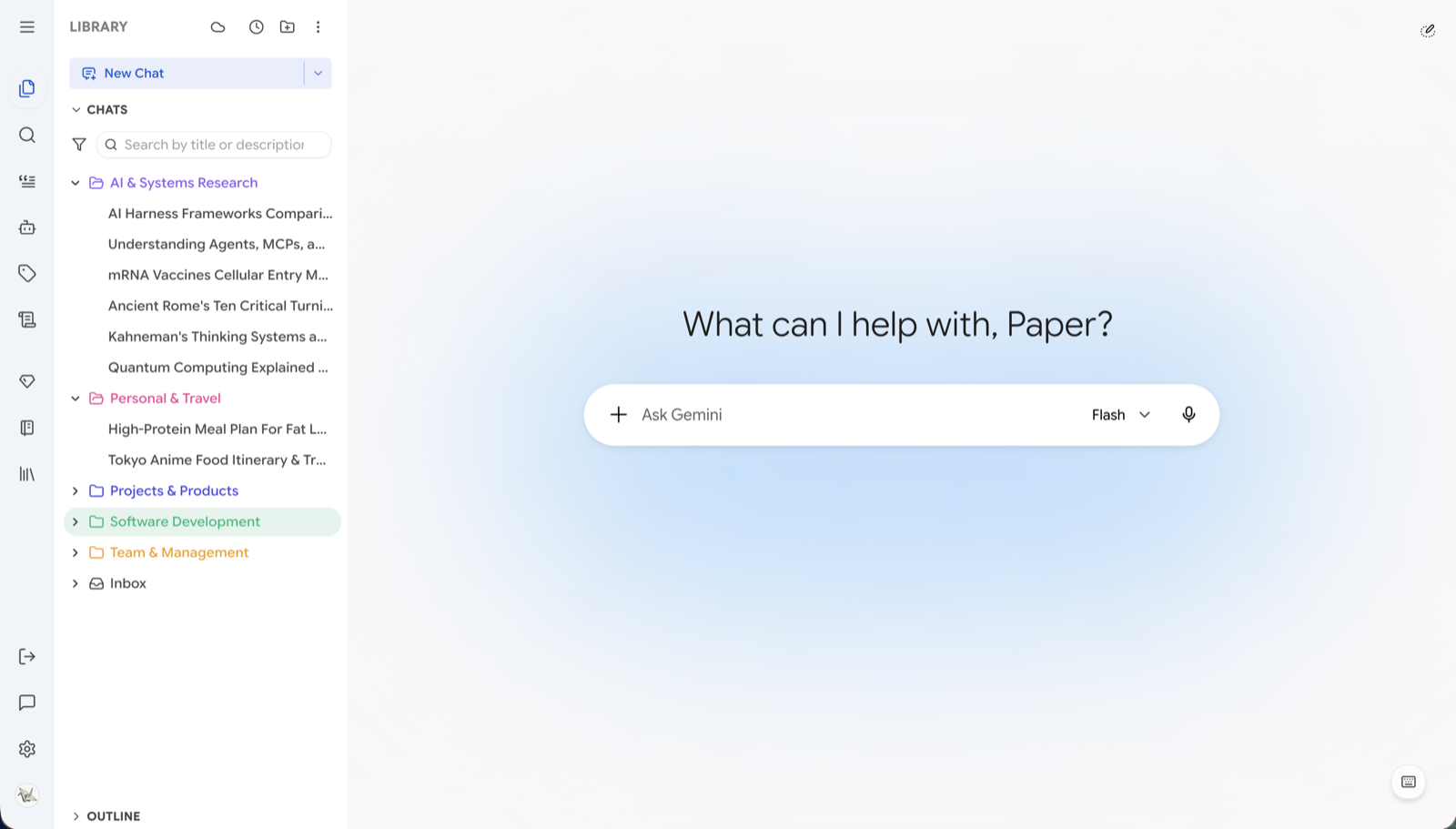
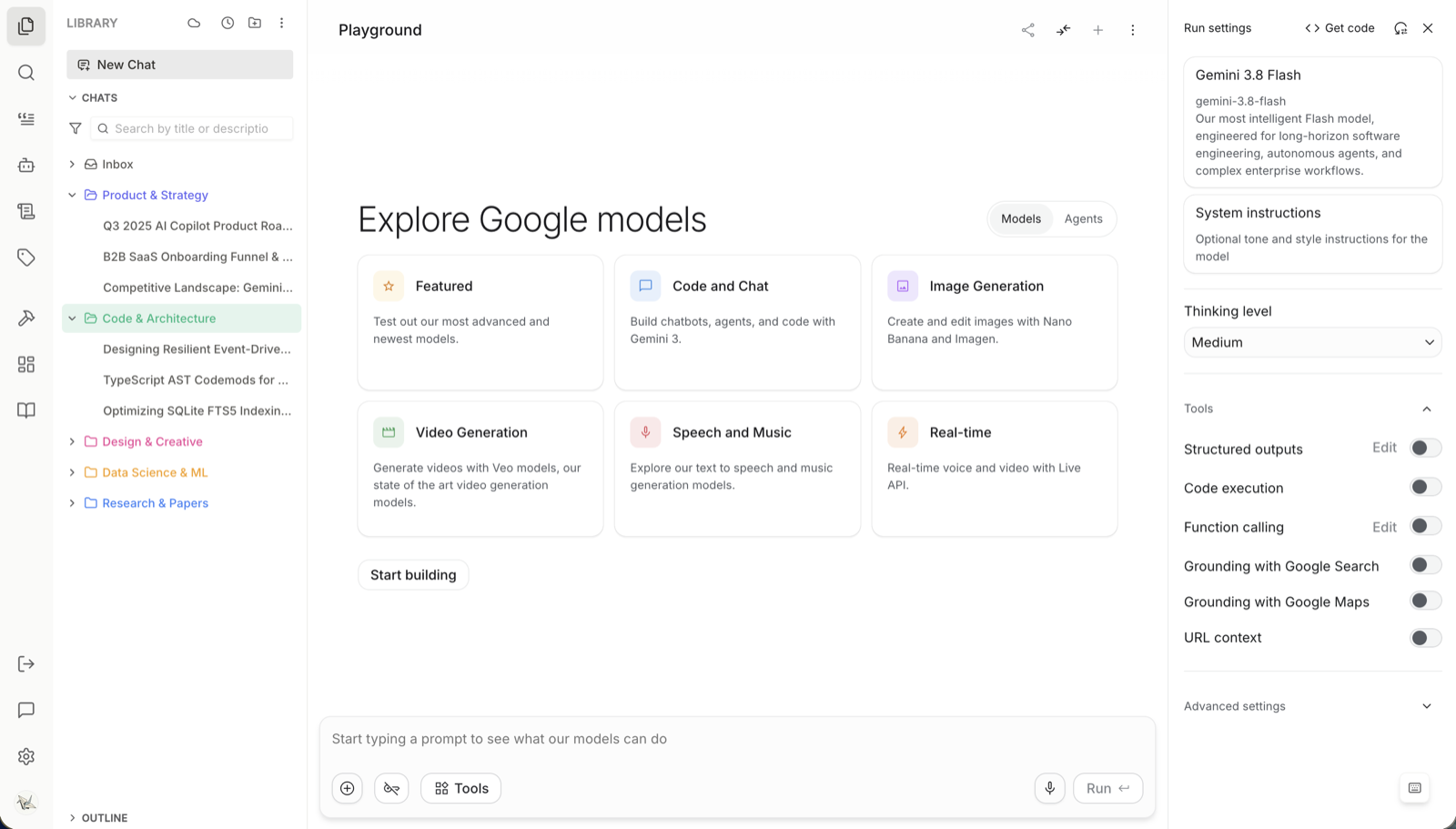
You can flip back to the platform's own sidebar at any time with Alt+Shift+Q, or the Switch to Original Sidebar button in the sidebar footer. Nothing is lost when you do — your folders and tags are still there when you switch back.
4. Import your chat list
On first install, Better Sidebar only sees your most recent conversations — the ones the platform happens to render. Older chats need to be imported before they show up in the tree.
A prompt appears on first launch offering to import the full list. If you skipped it, run it any time from the ⋯ menu in the sidebar header → Import Chat List.
This imports titles and metadata only, which is enough for organizing. To make old conversations searchable, see the next step.
5. Make old conversations searchable
Full-text search only works on messages the extension has actually seen.
On AI Studio there's a bulk import: Settings → Data & Storage → Import Chat Data. It walks you through exporting your library to Google Drive, downloading the ZIP, and uploading it. See Search.
On Gemini there's no bulk export from Google, so messages get recorded as you open each conversation. The fastest way to catch up is to let the agent do it — ask it to "sync the contents of my 20 most recent chats" and it will walk through them for you.
6. Try the basics
- Create a folder — click the folder+ icon in the header, type a name, press Enter, then drag a conversation into it
- Search — press
Alt+2, type any word you remember from an old chat - Save a prompt — go to Prompts (
Alt+3), click +, then type/in the chat input to insert it - Save a snippet — highlight any part of a Gemini answer and click Save as Snippet in the toolbar that appears
- Ask the agent — type
>in the chat input, pick Better Sidebar, and ask it to organize your unfiled chats