
Export
Anything in your library can leave it. Right-click a conversation, a snippet, or a folder, choose Export, and pick a target.
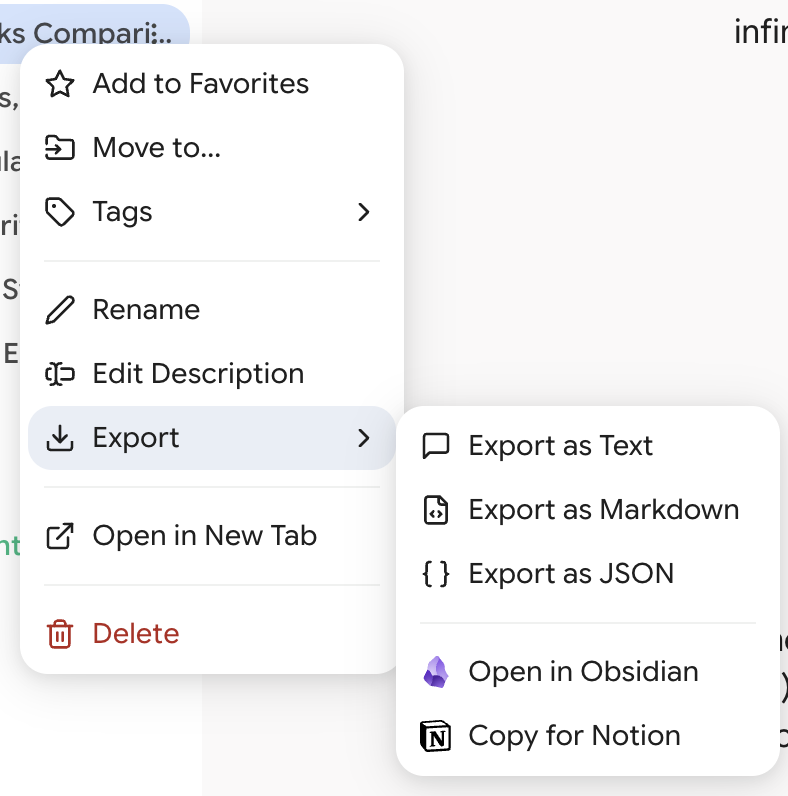
Targets
Markdown
Headings for each turn, code blocks intact, plus frontmatter. This is the one to use for anything you're going to keep.
Plain Text
Formatting stripped, just the dialogue. Good for pasting into an email, or feeding to a tool that chokes on Markdown.
JSON
For programmatic use — building a dataset, running your own analysis, feeding another tool.
Obsidian
Opens the note directly in your vault via Obsidian's URI protocol. Obsidian must be installed and running on the same machine. Formatting and code blocks survive intact.
Snippets go into a Snippets folder in your vault by default.
Notion
Creates a page under the target page you configured, with the content converted to Notion blocks. Requires setup first — see Integrations.
What You Can Export
A single conversation
Right-click it in the Library tab (or Favorites, Gems, Notebooks — anywhere a conversation appears) → Export → pick a target. The file downloads immediately, named after the conversation.
A whole folder
Right-click a folder → Export Folder. Every conversation inside is exported. With a file format, you get a ZIP with one file per conversation.
A batch selection
Enter Batch Mode (Alt+Shift+B), check what you want, then use Export in the batch toolbar. Same deal — one file per item, packed into a ZIP.
For Notion, batch export runs page by page with a progress toast (Exporting to Notion (7/23)…) and can be cancelled part-way. Already-created pages stay.
Snippets
Snippets export the same way, to the same targets. This is the intended path into a knowledge base: save the good paragraph while you're reading, export the collection into Obsidian later.
"No content found"
If an export fails with a message about no content, the extension has that conversation's title but has never seen its messages. Nothing to export yet.
Fix it by opening the conversation once so the messages get recorded, then export again. For many conversations at once, ask the agent to sync them first:
Export all chats in my Work folder from March onwards to Markdown, one file per chat, zipped. If any chat doesn't have its messages synced yet, tell me before exporting.
The agent checks first and reports the gap rather than quietly exporting half your folder.
Exporting Your Whole Database
None of the above is a backup. For a complete copy of everything — including folder structure, tags and settings — use Settings → Data & Storage → Export, which produces a single .db file. See Backups & Restore.
The two serve different purposes. Markdown export is for reading your conversations somewhere else. Database export is for restoring Better Sidebar. Don't rely on one for the other's job.