
Search
The Search tab lets you find any message you've ever sent or received — not just by title, but by the actual content of your conversations. Think of it as Ctrl+F for your entire AI chat history.
How It Works
Better Sidebar maintains a local SQLite database with full-text search indexing. When you type a query, it searches across the content of every message stored in your browser — both your prompts and the AI's responses.
- Queries of 3+ characters use FTS5 (fast, phrase-matching)
- Shorter queries fall back to simple text matching (still works, just slower on large databases)
Results appear instantly as you type, with a 500ms debounce to avoid hammering the database on every keystroke.
The Search tab searches message content. If you just want to filter conversations by title, use the search filter in the Library tab instead — that's faster for quick title lookups.
The Search Input
The search bar has two inline toggle buttons on the right:
- Aa (Case Sensitive) — When on, "React" won't match "react"
- W (Whole Word) — When on, "port" won't match "import" or "portal"
Below the input, click the ⋯ icon to expand advanced options:
Folders to Include
Type folder names separated by commas. Search will only look inside conversations in those folders (and their subfolders, recursively).
Example: Work, Client Projects — only searches conversations inside "Work" or "Client Projects" folders and any nested subfolders.
Folders to Exclude
Same format, opposite effect. Conversations in these folders are excluded from results.
Example: Archive, Junk — skips anything you've filed away.
Search Scope
- All conversations — searches your entire library (default)
- Current conversation only — limits search to the chat you're currently viewing
The "Current conversation only" option is disabled when you're not inside any conversation. It auto-resets to "All" when you navigate away.
"Current conversation only" is essentially Ctrl+F for the active chat. Great for finding something specific in a long conversation without scrolling through 200 messages.
Role Filter
- All — search both your messages and the model's
- User only — only your prompts
- Model only — only AI responses
Useful when you remember phrasing something a specific way, or when you're looking for a piece of code the model generated.
Platform Filter
In the tab header, there's a filter icon (🔽) that opens a platform dropdown:
- Gemini ✓
- AI Studio ✓
By default, only the current platform is selected. Check both to search across all platforms at once. The current platform can't be unchecked.
When searching across platforms, results show a small platform icon next to each match so you know which one it came from.
Reading Results
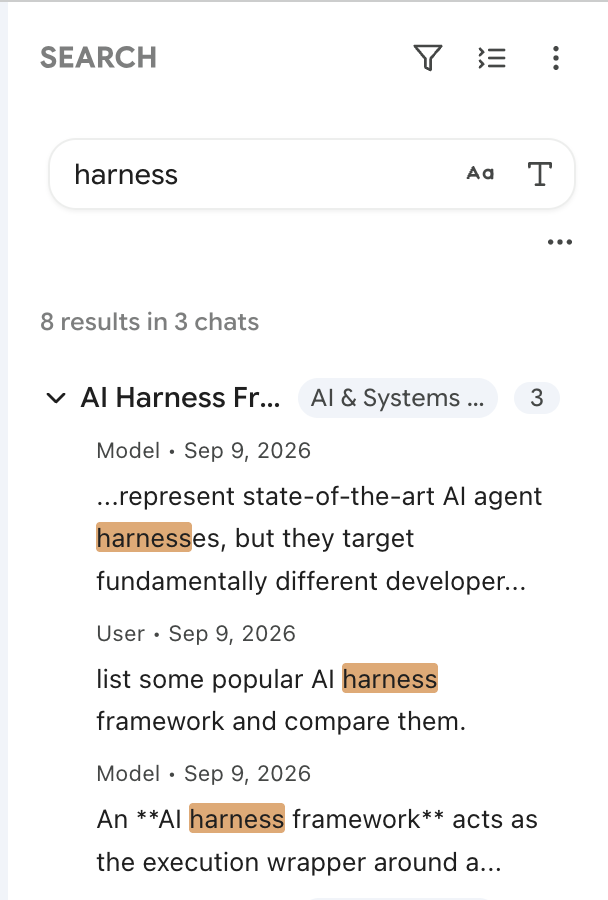
Results are grouped by conversation. Each group shows:
- The conversation title
- The folder it belongs to (as a small badge)
- The number of matching messages
Click a group header to collapse/expand it. All groups auto-expand when new results come in. Use the Collapse All button in the header if you have many groups and want to scan titles first.
Match snippets
Each individual match shows:
- Who said it (User / Model) and the date
- A snippet of the message content with your search term highlighted in yellow
- The snippet shows ~40 characters before and ~60 after the match for context
Message Preview
Click any match to open a full preview modal with:
- The complete message rendered as Markdown (with search term highlighted throughout)
- A copy button for the content
- An expandable Context section showing the adjacent message — if you clicked a user message, it shows the model's response, and vice versa
From the preview modal, you can:
- Close — dismiss and go back to results
- Jump to Conversation — navigate directly to that conversation (and on AI Studio, it even scrolls to the specific message)
Quick navigation
Hover over any match in the results list — an external-link icon appears in the top-right corner. Click it to navigate directly to that conversation without opening the preview first.
On AI Studio, "Jump to Conversation" actually scrolls to the specific message in the chat. On Gemini, it opens the conversation (scrolling to a specific message isn't supported by Gemini's UI yet).
Import Chat History
By default, Better Sidebar only has message content for conversations that were active after you installed the extension. Older conversations have titles and metadata, but their message content hasn't been indexed yet — which means they won't appear in search results.
To fix this, you need to import your history.
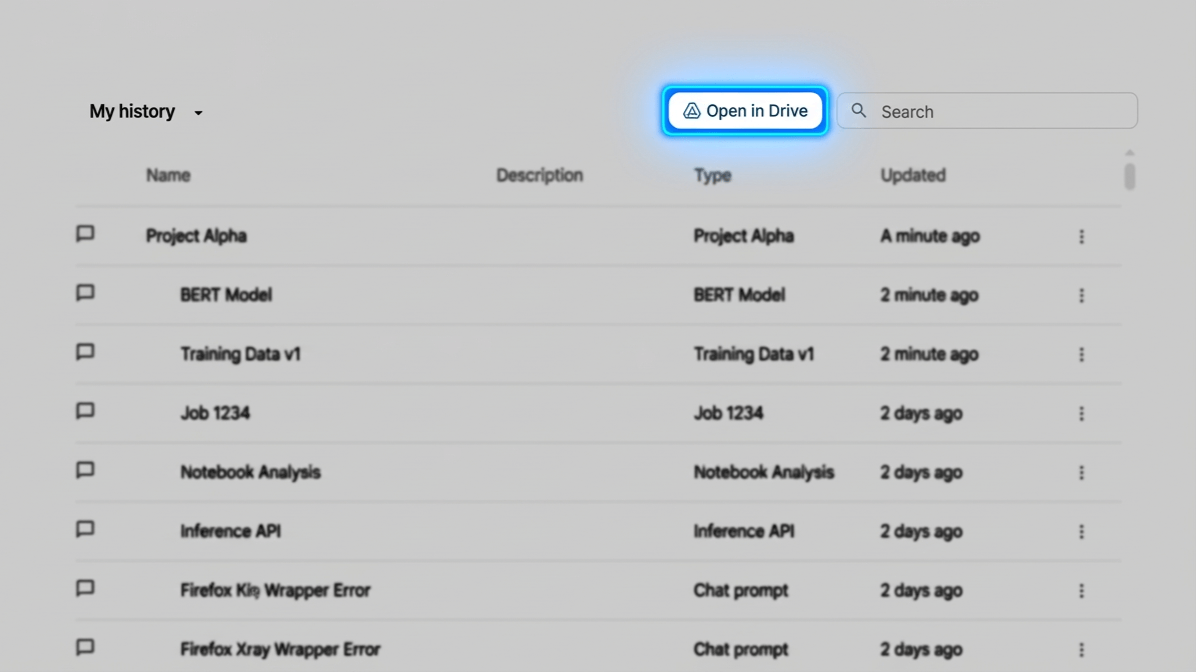
How to import (AI Studio)
Open the import dialog from either place:
- The Upload icon in the Search tab header
- Settings → Data & Storage → Import Chat Data
The dialog walks you through it, but in short:
-
Go to AI Studio Library and click Open in Drive
-
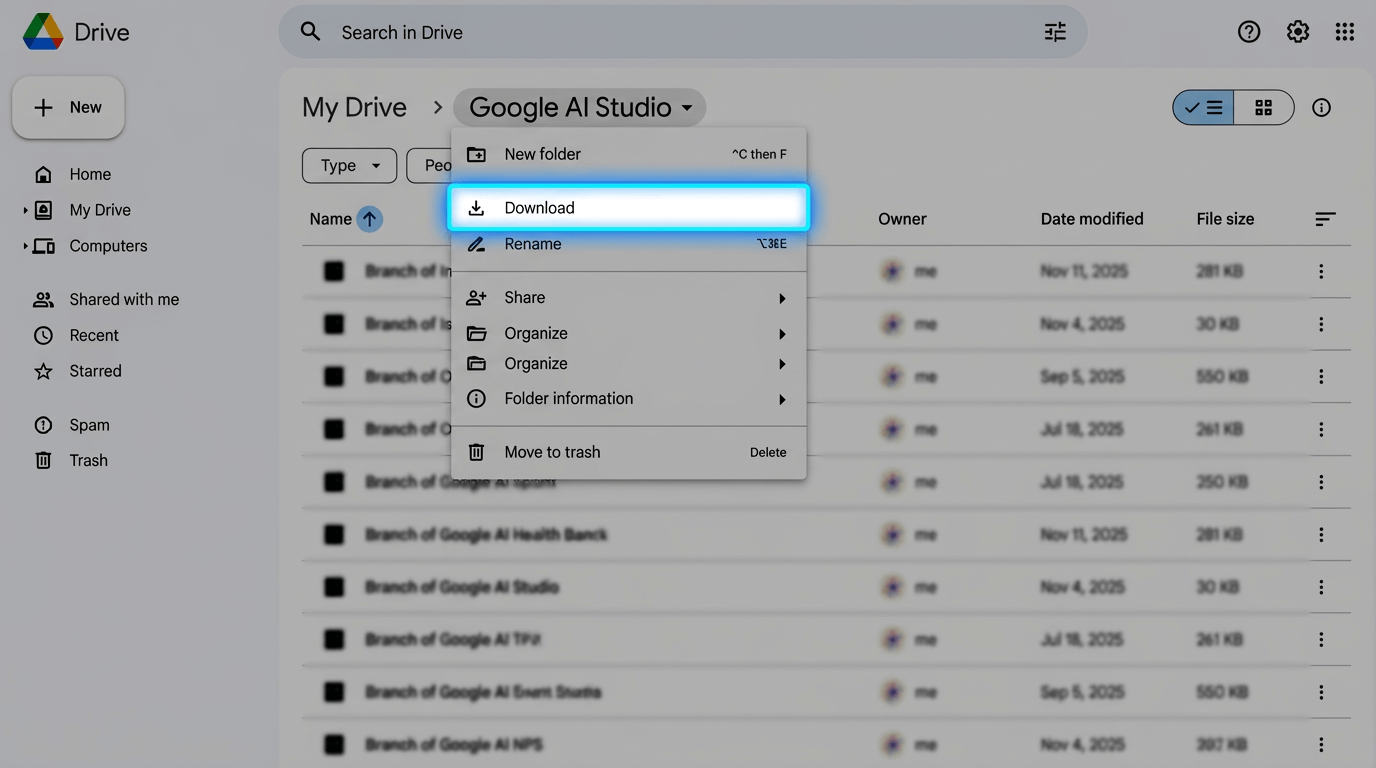
In Google Drive, open the AI Studio folder dropdown and choose Download. Google zips it for you.
-
Upload that ZIP back in the import dialog
-
Better Sidebar matches each file to its conversation by title, then indexes the message content
The dialog shows live processing logs and an imported/unmatched count when it finishes.
Images inside conversations are skipped during import — only text is indexed.
The import matches files by conversation title. If you renamed a conversation after exporting, the match may fail. Conversations that can't be matched are skipped (your data isn't lost — they just aren't indexed).
For Gemini
Google doesn't offer a bulk export for Gemini, so message content is recorded as you open each conversation.
Import Chat List in the Library tab brings in titles and metadata only. Even after running it, older conversations stay out of full-text search until their messages have been seen.
You have two ways to catch up:
-
Click through them. Open the conversations you care about; the extension records them in the background as you view them.
-
Let the agent do it. This is the practical option for large libraries. Type
>in the chat input, pick Better Sidebar, and ask:Check how many chats only have a title with no saved messages. Give me the total first, then sync the contents of the latest 30 so they show up in search.
The agent finds the empty ones, opens each in turn, and reports what it managed to record. Some very old chats are simply gone from Google's side — it will tell you which ones those are. See Better Sidebar Agent.
No Results?
If your search returns nothing for a term you're sure exists:
- The conversation might not be indexed yet — click the "Why can't I find older conversations?" link that appears below the empty state. It explains how to import or scan your history.
- Check your filters — make sure you haven't accidentally scoped to "Current conversation only" or excluded the relevant folder.
- Try a shorter query — FTS5 does phrase matching by default. If your query is very long, try a key phrase from it instead.
After installing Better Sidebar, spend 2 minutes importing your history. You only need to do it once, and it unlocks the full power of search — suddenly every conversation you've ever had becomes instantly findable.