
Snippets
You have a long conversation with Gemini. Buried in it is one excellent explanation, or one code block that finally works. The rest is you and the model going in circles.
Snippets is where the good part goes.
Saving a Snippet
From a whole answer
Hover over any AI response and a Save as Snippet button appears.
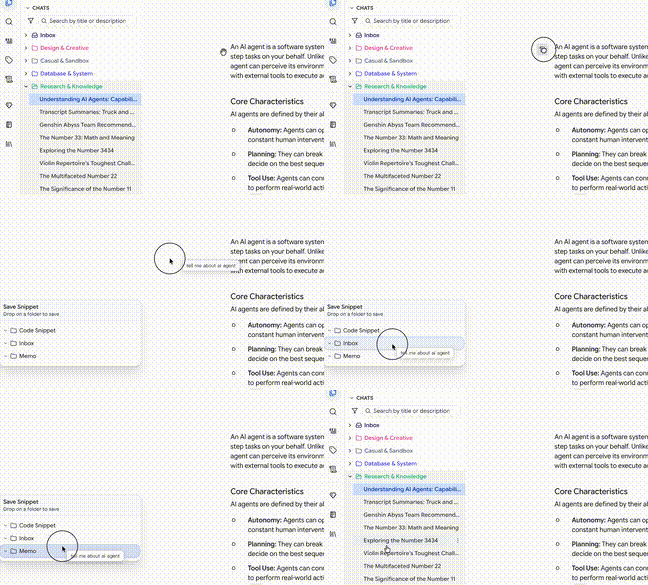
The button does two things:
- Click — saves straight to your Snippets inbox
- Hold and drag — drop it onto a folder in the sidebar to file it immediately
The drag-to-folder route is worth learning. It's the difference between an inbox you have to triage later and a library that's already organized.
From a selection (Gemini)
Highlight any part of a response and the selection toolbar appears with Save as Snippet. This is the precise option — one paragraph, one code block, one table, rather than the entire answer.
Selection is usually what you want. An AI answer that's 800 words long has maybe 80 words worth keeping. Saving the whole thing means you'll have to re-read it later to find the part that mattered.
Formatting Survives
Snippets keep their Markdown: headings, lists, code blocks with syntax highlighting, tables, bold and italic. What you saw in the conversation is what you get in the library.
This matters most for code. A snippet that lost its code fences would be nearly useless.
Organizing
The Snippets tab uses the same folder tree as everything else, so the interactions are familiar:
- Folders — nested, colored, draggable
- Drag and drop — move snippets between folders
- Rename — right-click, or
F2 - Duplicate — right-click → Duplicate
- Favorites — star snippets to float them to the top
- Batch mode — select several to move, delete or export at once
- Filters — search by title, favorites-only
New snippets land in Inbox unless you dragged them somewhere specific.
Reading a Snippet
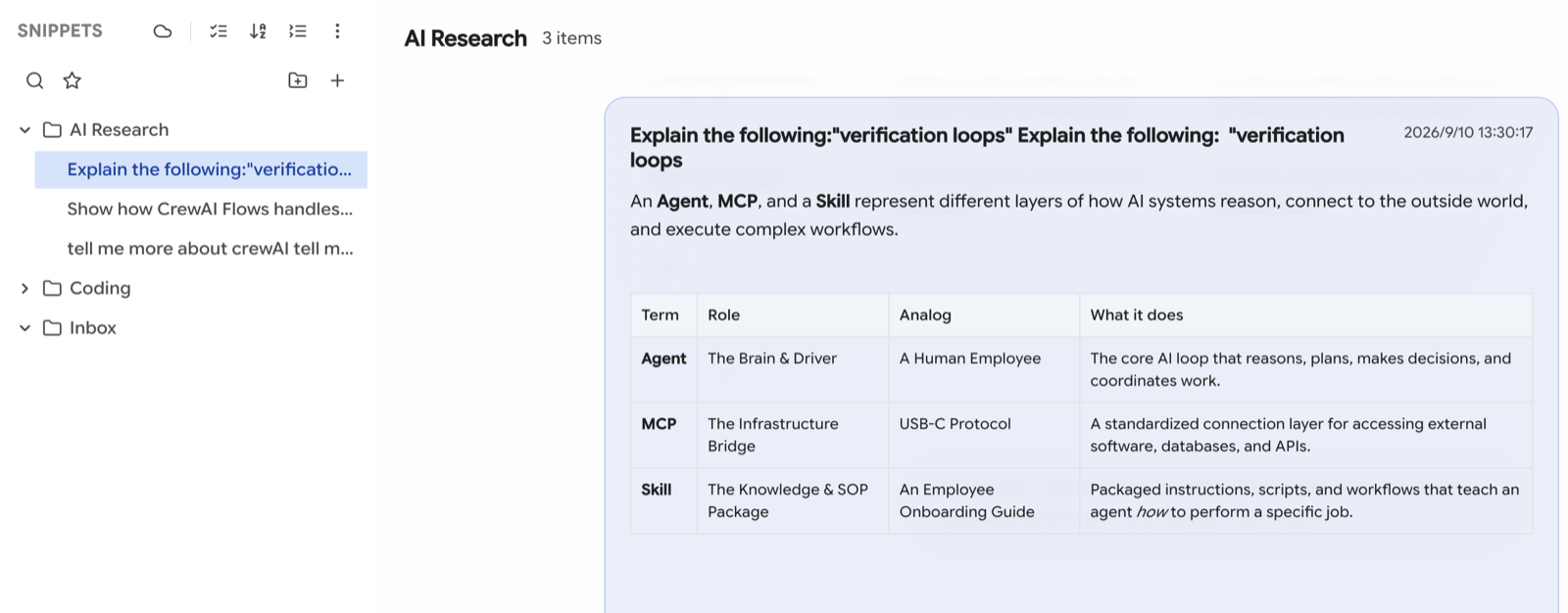
Click a snippet and it opens in a reader panel with the content fully rendered, plus:
- Copy Content — the raw Markdown to your clipboard
- Go to Source — jumps back to the conversation it came from
- Its title, source, and when it was created
Go to Source is the quietly useful one. A snippet is a fragment; six weeks later you may want the argument around it. The link back means you didn't lose that context by extracting the good part.
Exporting
Snippets export to all the same targets as conversations: Markdown, plain text, JSON, Obsidian, and Notion. Right-click → Export, or select several in batch mode.
This is the intended path into a knowledge base: capture while reading, export in bulk later. Save snippets as you go for a month, then send the whole collection into Obsidian in one operation.
Obsidian and Notion export need the Power Pack. See Integrations.
Titles Are Usually Wrong At First
A snippet saved from a selection inherits the text around it as a title, which produces things like "Explain the following: verification loops Explain the following: verification loops".
That's the trade-off for saving in one click instead of filling in a form. Two ways to fix it:
By hand — right-click → Rename.
In bulk — ask the agent:
My snippet inbox is a mess. Group them into folders by topic, and shorten titles that are still my original question into a brief summary. If the same content is saved twice, keep only the oldest one. Show me the list before deleting anything.
It reads the actual content, so the titles it writes describe what the snippet says rather than what you happened to ask.
Snippets vs Prompts
They look similar and serve opposite purposes.
If you're saving something to use again as a prompt, that's a prompt — and the selection toolbar has a separate Save as Prompt action for exactly that case.
A Workflow That Works
- Work normally. Don't try to organize while you're thinking.
- When an answer contains something good, highlight it and save the snippet. Drag it to a folder if you already know where it belongs.
- Once a week, have the agent tidy the inbox — retitle, refile, dedupe.
- Once a month, export the whole thing to Obsidian or Notion.
The point is that step 2 costs about two seconds. Anything more expensive than that and you won't do it while you're mid-thought, which means the good paragraphs stay buried in conversations you'll never open again.