
Keyboard Shortcuts
Better Sidebar comes with 16 customizable keyboard shortcuts that let you control the sidebar, switch tabs, and trigger actions without touching your mouse. Every shortcut can be rebound to whatever key combination feels natural to you.
Open the hotkey settings via Settings (gear icon or Alt+Shift+,) → Keyboard Shortcuts tab.
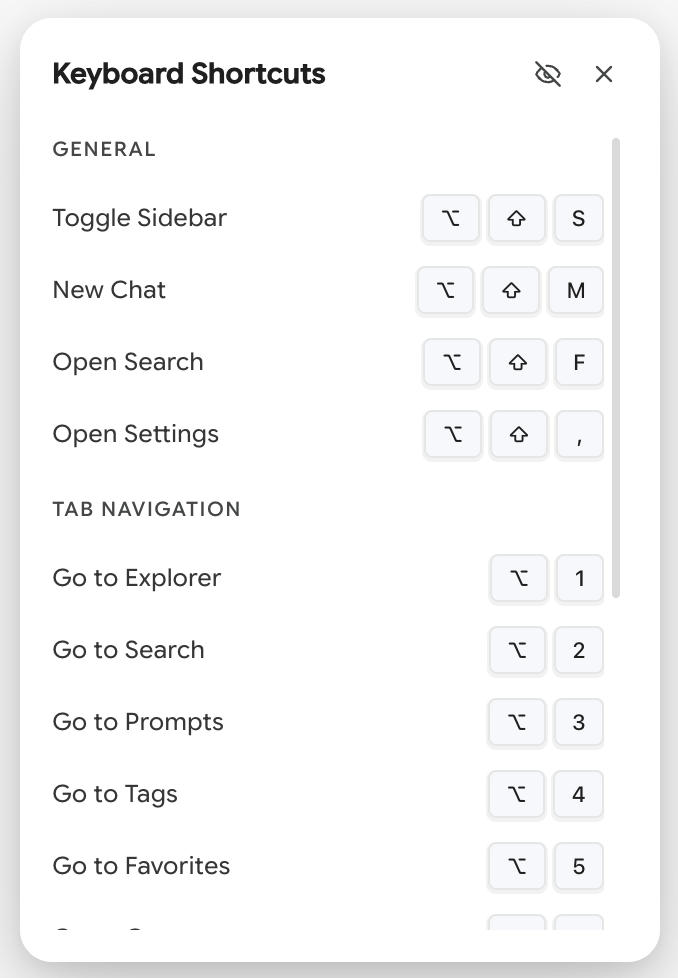
Default Shortcuts
General
Navigation
Actions
The Alt+1 … Alt+7 navigation shortcuts are the fastest way between tabs, and they become essential in Compact Mode, where the tab icons are hidden entirely.
In-Tree Keys
Separate from the configurable shortcuts above, the file tree responds to standard file-manager keys once a row is focused. These aren't rebindable:
There's also a Shortcut Helper — a small keyboard icon in the bottom-right of the page that opens this list on demand. Hide it via Settings → UI Controls → Element Visibility → Shortcut Helper.
Recording a New Binding
To change any shortcut:
- Click the current binding button (shows the key combo like
Alt+Shift+S) - The button enters recording mode — it pulses and shows "Recording..."
- Press your desired key combination
- The new binding is saved immediately
Recording rules
- Escape cancels recording without changing the binding
- Backspace or Delete unbinds the shortcut entirely (sets it to "—")
- Click anywhere outside the recording button to cancel
- You need at least one modifier key (Alt, Ctrl/Cmd, Shift) plus a regular key
While recording, the extension temporarily disables all hotkey listeners so your keypress isn't intercepted before it reaches the recorder.
Conflict Detection
If you assign a key combination that's already used by another action, Better Sidebar warns you immediately. A red-tinted binding button appears with a conflict message below it:
⚠️ Conflicts with: Toggle Sidebar
The conflicting binding still works — it's not blocked. But the warning helps you notice so you can fix it.
Conflicting bindings are allowed but unpredictable. Only one action will fire when you press the keys, and which one wins depends on registration order. Fix conflicts by rebinding one of the two actions.
Resetting Shortcuts
Reset a single shortcut
After changing a binding, a small ↩ (undo) icon appears next to it. Click it to reset that one shortcut back to its default.
Reset all shortcuts
Click the Reset All button in the top-right corner of the Keyboard Shortcuts page. This reverts every binding to the factory defaults — useful if you've gotten your bindings into a confusing state.
Platform-Specific Shortcuts
Some shortcuts are only available on certain platforms:
- Gems and Notebooks navigation — Gemini only (these tabs don't exist on AI Studio)
- Toggle Zen Mode — Gemini only (Zen Mode is a Gemini feature)
These shortcuts won't appear in the settings panel when you're on a platform that doesn't support them.
Modifier Key Display
On macOS, modifier keys display as symbols:
On Windows/Linux, modifiers display as text: Ctrl+Alt+Shift+N.
If you use multiple keyboard-heavy extensions, check for conflicts with those too. Better Sidebar can't detect conflicts with other extensions — only within its own shortcuts. A quick test: press your new binding and make sure only the expected action fires.
Helper Tips
At the bottom of the settings page, you'll find three reminders:
- Recording: Click a binding then press your key combo
- Unbinding: Press Backspace/Delete during recording to remove a shortcut
- Canceling: Press Escape to cancel recording