Notebooks

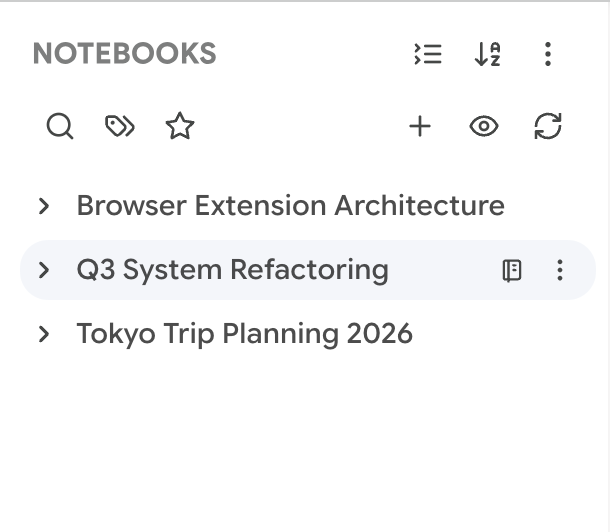
The Notebooks tab is your hub for Gemini's Notebooks feature. Notebooks are a different kind of conversation — they're project-like containers that can hold multiple threads and sources. Better Sidebar gives you a tree view of all your notebooks, with the ability to expand each one to see its child conversations.

The Notebooks tab listing synced Gemini Notebooks

Tip

This tab is exclusive to Gemini. AI Studio doesn't have a Notebooks concept, so you won't see this tab on that platform.

Scanning Your Notebooks

Like with Gems, Better Sidebar needs to discover your notebooks before it can display them.

Click the Scan button (🔄) in the header toolbar. The extension reaches out to Gemini's API and imports your full notebook list. A loading spinner appears briefly while it works.

The extension also automatically picks up new notebooks you create. When you create a notebook through Gemini's native UI, a browser event fires and Better Sidebar refreshes its data in the background.

Browsing & Filtering

The Notebooks tab shares the same filter infrastructure as the rest of the sidebar:

Click the 🔍 icon to open inline search. Type part of a notebook name — the tree prunes to show only matches.

Tag filter

Filter by tags you've applied to notebook conversations. Only notebooks containing tagged conversations (or notebooks you've tagged directly) remain visible.

Favorites

Toggle ⭐ to see only favorited items. Works on both notebook headers and individual conversations within them.

Sorting

Toggle between alphabetical and date-based sorting using the sort button in the header.

Working with Notebooks

Opening a notebook

Click a notebook to expand/collapse it in the tree. To actually navigate to the notebook page, right-click → Open Notebook. This takes you to gemini.google.com/notebook/{id}.

Want to keep your current page? Right-click → Open in New Tab opens the notebook in a background tab.

Deleting a notebook

Right-click → Delete Notebook. A confirmation dialog protects you from accidents. When confirmed, the notebook is deleted from Gemini's servers via their internal API.

Warning

Deleting a notebook is permanent and removes it from Google's servers. If you were currently viewing that notebook, Better Sidebar navigates you to a new blank chat to avoid showing a broken page.

Starting a new notebook chat

Right-click a notebook → New Notebook Chat. The dropdown arrow on the sidebar's New Chat button also offers it: left-click reuses your last notebook, right-click opens a searchable picker.

Default Folders — File Notebook Chats Automatically

Right-click a notebook → Set Default Folder and pick a destination. Every new chat started from that notebook lands there automatically.

You can also bind from the folder side: Folder Settings → Default target for → Notebook. The folder then shows a shortcut button in its hover action bar, plus New Notebook Chat in its dropdown menu.

Tip

Notebooks are usually already project-shaped, so pointing each one at a matching folder means the folder becomes a complete record of that project — the notebook's threads plus anything else you drag in. Set it up once per notebook and stop thinking about it.

Notebook Conversations

Expand any notebook to see the conversations within it. These conversations are the individual threads and interactions that live inside the notebook container.

Each child conversation supports the full set of actions you'd expect:

  • Click to navigate directly to that conversation
  • Right-click for the full context menu — rename, move to folder, add tags, export, favorite, delete
  • Favorite for quick access
  • Tag for cross-cutting organization
Tip

Notebooks are great for research projects where you want multiple related conversations in one place. Use the Notebooks tab to quickly jump between threads without losing your place in the project.

Creating New Notebooks

Click the + button that appears in the empty state (or use Gemini's native notebook creation flow at gemini.google.com/notebooks/create). After creating, the extension automatically detects the new notebook — no manual scan needed.

Viewing All Notebooks

Click the Notebooks icon in the header toolbar to navigate to Gemini's notebooks overview page at gemini.google.com/notebooks/view. This shows the full native view with all notebook metadata.

Tip

If you're a heavy Notebooks user, pin the Notebooks tab to your sidebar shortcuts (Settings → General → Shortcuts) for one-click access. Combined with the Alt+7 hotkey, you can jump to your notebooks instantly from anywhere.

Paper Crane Dev  ·  set in Playfair Display & JetBrains Mono