Agent Overview
Better Sidebar has an AI agent built in. You describe a job in plain language, it works out the steps, runs them, and reports back.
The important part: it runs through your existing Gemini or AI Studio session. There's no API key to paste, no tokens to buy, and no server involved. The model you're already talking to is the one doing the work, and your data never leaves the browser.

Two Agents
They have different jobs and different tools, and you pick one when you start.
The Better Sidebar agent cannot touch your files. The Workspace agent cannot see your conversations. That separation is deliberate — it keeps what each one is allowed to do easy to reason about.
Starting a Task
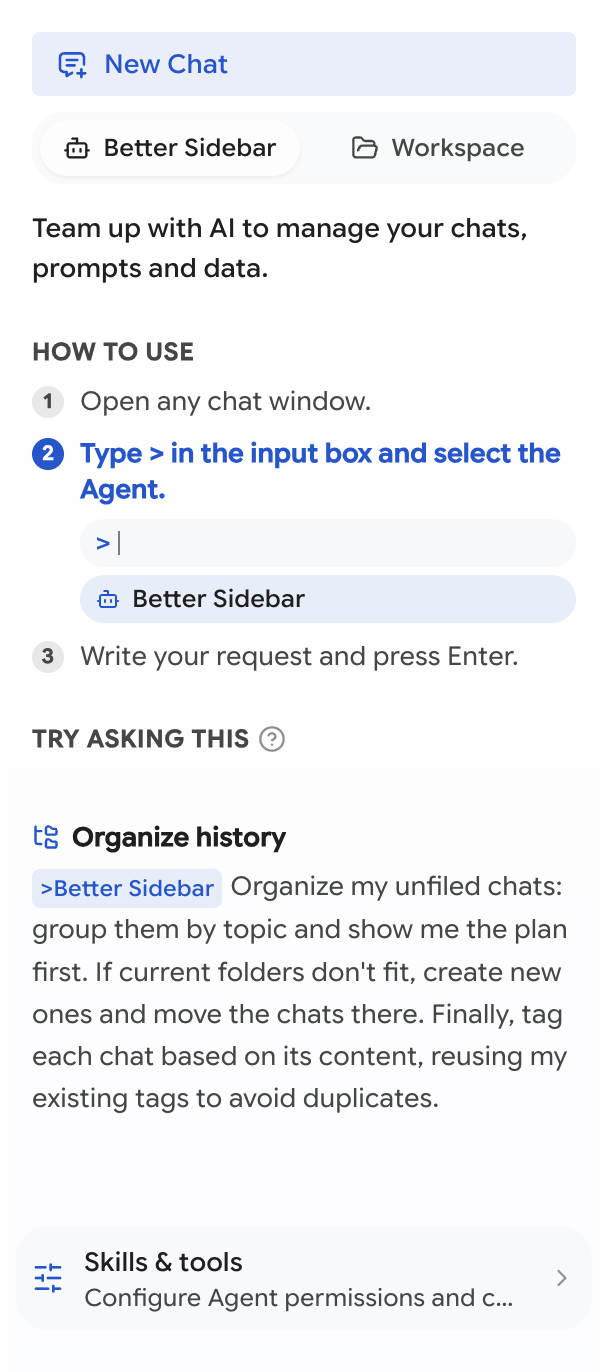
Type > in the chat input. A picker appears, you choose an agent, then write your request and press Enter.

That's the whole interface. There's no separate chat window, because the agent works by talking to the same model in the same conversation you're already in.
The Agent tab in the sidebar is a launcher, not a chat. It exists to hold the how-to, the example prompts, and links to skills and workspace settings. The actual conversation happens in the page's normal chat input.
Example prompts
The Agent tab carries a set of worked examples — organize history, deep search, batch export, sync missing records, refactor the prompt library, clean up snippets, record decisions, analyze statistics. Click one and it goes into the input box, where you can edit it before sending.
They're worth reading even if you don't use them. They're written the way requests to this agent work best: specific about the goal, explicit about wanting a plan first, and clear about the edge cases.
Vague requests get vague results. "Organize my chats" is a coin flip. "Group my unfiled chats by topic, show me the plan first, create new folders only if the existing ones don't fit, then tag each one reusing my existing tags" gets you what you actually wanted. The extra sentence is worth typing.
Watching It Work
The dock
While a task is running, a status bar sits pinned above the chat input — the Agent Dock. It stays visible even with the sidebar closed, and it's where everything happens: current status, the stop button, approval prompts, and the summary at the end.
Statuses you'll see: Thinking… → Reading response… → Working… → Finished, plus Waiting for your approval and Paused when it needs you.
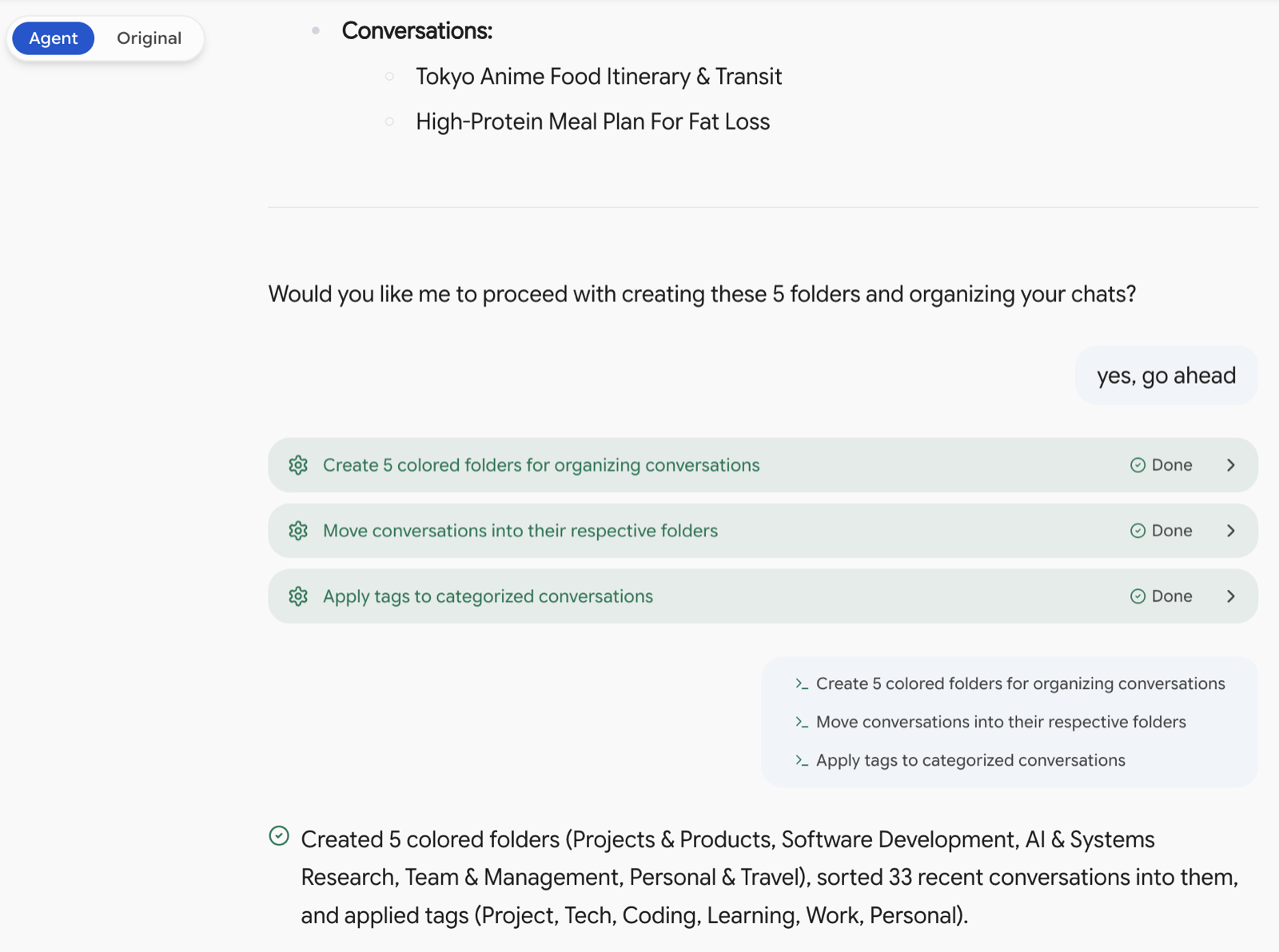
Agent view vs Original view
A toggle in the top-left switches how the conversation renders:
- Agent — steps laid out as readable cards, with results collapsed until you open them
- Original — the raw conversation exactly as the site renders it
Agent view is the readable one. Original view is there for when you want to see precisely what was sent and received, which is occasionally what you need to understand why something went wrong.
Steps
Each action shows as a card with a plain-language label — Looking through your data, Changing your data, Fetching conversation content, Exporting — and a status: Running, Done, Failed, Rejected, Not run.
Click any card to see exactly what ran and what came back. Nothing is hidden; the summaries are for reading, the detail is one click away.
Staying in Control
This is the part that matters most, because an agent with database access and no brakes is a bad idea.
Reads run, writes ask
By default:
Reads are safe and asking permission for every SELECT would make the whole thing unusable. Writes are not safe, so they stop and ask.
The approval prompt
When a change needs approval, the dock shows what it wants to do. You can:
- Run it
- Run these N too — approve the rest of this batch
- Don't ask again for this task — go hands-off for the remainder of this task only
- Reject it, optionally with a reason the model will see
"Don't ask again for this task" is per-task, not permanent. The next task starts cautious again.
Undo
After a task that changed data, an Undo changes button appears in the summary. It restores the affected tables to how they were when the task started.
Undo has a window: it's available until the next task starts, or until you click Keep changes. After that there's nothing to undo. If a task did something you're unsure about, decide before starting another one.
Also note: undo reverts the tables, so any other change you made to those tables since the task started gets reverted too. And the model doesn't know you undid anything — tell it before continuing the conversation, or it'll keep reasoning from a state that no longer exists.
For anything larger, local backups are the real safety net. A snapshot is taken before bulk deletes automatically.
It stops itself
The engine watches for the ways agent loops go wrong and interrupts rather than grinding on:
That last one is a check-in, not an error: "12 steps done on its own." Nothing is wrong; it paused so you can look before it continues. Keep going or Stop here.
Rounds you pressed Enter on don't count toward the limit — a hands-on session has no ceiling, because you're the brake.
If the page reloads mid-task
Steps that ran before a reload but whose results never reached the model leave the task stuck. Better Sidebar notices and offers to send those results on, so the work isn't repeated.
If any of them changed data, it tells you that plainly: those changes are already saved. You choose Send them to carry on, or Forget it — in which case anything already changed stays changed.
What's Free and What Isn't
On the free plan the agent is read-only, and it's genuinely useful that way — it will tell you which folders are dead, which prompts you never use, and where every unfiled chat should go. It just won't do the moving.
When it hits the wall it says so plainly and offers the upgrade, rather than failing in a confusing way.
Privacy
Worth restating because "AI agent" usually means "your data goes somewhere":
- It uses your existing Gemini or AI Studio session. No API keys.
- No extra cost and no separate token budget.
- Queries run against the local SQLite database in your browser.
- Nothing is sent to any server belonging to Better Sidebar. There is no such server.
What does reach Google is the same thing that reaches Google when you type a message by hand: the prompt, which includes whatever data the agent read in order to answer you. If a conversation title is in the database and the agent needs to reason about it, that title goes into the prompt. That's inherent to running on top of a hosted model.
Next
- Better Sidebar Agent — skills, recipes, worked examples
- Workspace Agent — files, Word, Excel, PDF, code
- Skills & Tools — permissions, custom skills, turning tools off