Better Sidebar Agent
This is the agent that touches your library: conversations, folders, tags, prompts, snippets. It can query the local database directly, which means it can answer questions no built-in filter covers, and act on the answers.
Start it by typing > in the chat input and picking Better Sidebar.

What It Can Reach
Plus three things beyond plain queries: it can sync conversation messages (open chats to record their content), export conversations to files, and activate a skill to load specialized instructions.
It cannot see your workspace files. That's the Workspace agent.
Built-in Skills
Skills are specialized instruction sets. The agent loads one when the task calls for it — you don't have to pick.
Each can be switched off, and you can write your own. See Skills & Tools.
Recipes
These are worth reading in full. The phrasing is the point — each one is specific about the goal and explicit about the edge case that would otherwise go wrong.
Organize a backlog
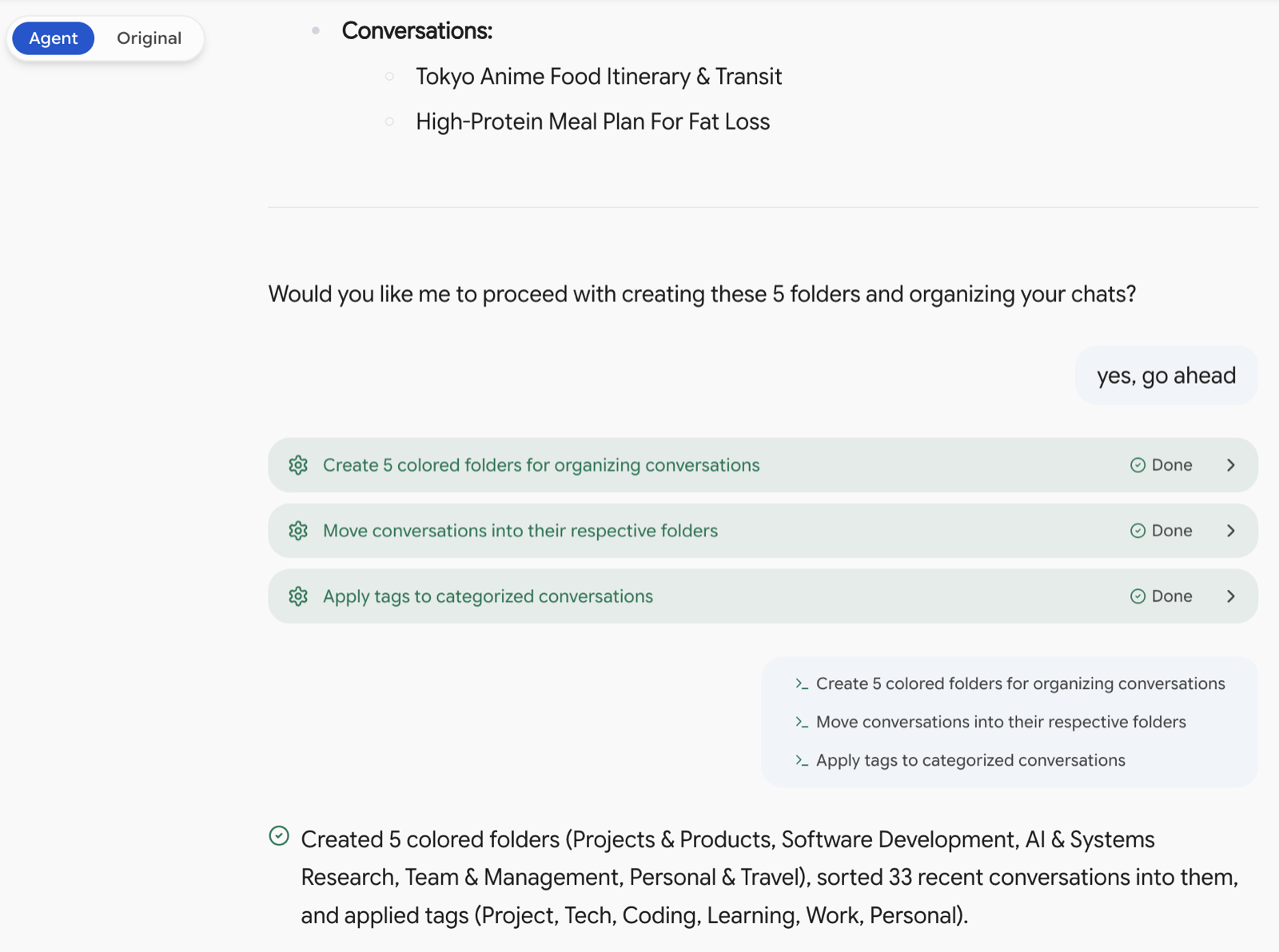
Organize my unfiled chats: group them by topic and show me the plan first. If current folders don't fit, create new ones and move the chats there. Finally, tag each chat based on its content, reusing my existing tags to avoid duplicates.
Three instructions doing real work here. Show me the plan first means you review before anything moves. If current folders don't fit stops it inventing a parallel folder structure next to the one you already built. Reusing my existing tags stops it creating coding, code and programming as three separate tags.
Deep search
Find all mentions of "Docker deployment". Search thoroughly across chats, message bodies, and code snippets, not just titles. Order them newest to oldest, give me a one-line summary of each, and say which folder it's in.
This is what the agent adds over the Search tab: search gives you matches, the agent gives you a summarized, ordered, contextualized answer. Slower, but it saves reading twenty results yourself.
Sync missing messages
Check how many chats only have a title with no saved messages. Give me the total first, ordered by most recent, then sync the contents of the latest 20 so they appear in searches and exports.
The single most useful thing to run after installing. Better Sidebar only records messages for conversations it has seen, so your back catalogue is invisible to search until this runs.
Ask for a count first. If the answer is 800, you'll want to think about batch size rather than kicking off a run that takes an hour.
Some very old conversations are simply gone from Google's side. The agent reports which ones came back empty rather than pretending it worked.
Batch export and archive
Export all chats in my Work folder from March onwards to Markdown, one file per chat, packed in a zip. If any chat doesn't have its messages synced yet, tell me before exporting.
That last sentence prevents the classic failure: an export that "succeeds" while silently producing empty files for every conversation whose messages were never recorded.
Refactor the prompt library
Clean up my prompt library: rename the ones that are hard to find via
/by putting the keyword at the beginning. Extract the repeated "role + output format" block into a shared prompt and import it into the others. If a variable only has a few fixed options, change it to a dropdown.
This uses prompt composition properly — extracting the shared block into one prompt and importing it means you change it once instead of eleven times.
Clean up snippets
My snippet inbox is a mess. Group them into folders by topic, and shorten titles that are still my original question into a brief summary. If the same content is saved twice, keep only the oldest one. Show me the list before deleting anything.
Snippets saved from a selection inherit the surrounding text as their title, which makes for terrible titles. This fixes them in bulk. Show me the list before deleting is not optional advice.
Statistics and audit
Build me a stats table: how many chats in each folder, how many new chats last month, and which folders haven't been active for over three months. Based on that, suggest which folders I should merge.
Works on the free plan, since it's all reads. A genuinely useful way to find out that eleven of your twenty-three folders are dead.
Other questions in the same vein:
- Which of my prompts have I never used?
- What topics do I talk about most?
- Which conversations are in the wrong folder, judging by their content?
Record decisions
Summarize our conclusions from this chat as a bulleted list and save it to
notes/decisions.mdin the workspace. Append any unresolved questions at the end. If the file already exists, append with today's date instead of overwriting.
This one spans both agents — reading the conversation and writing a file. Handy at the end of a long design discussion.
Working With It Conversationally
It keeps context. You don't need to type > again to continue — just keep talking:
Interesting. Break that down by month.
Now do the same for starred chats.
Actually, merge those two folders instead.
Treating it as a colleague rather than a command line is how you get the most out of it. Ask what it thinks:
Look at my library and tell me what needs organizing.
What can you do with my data?
Since v2.10 the instructions push it to discuss rather than immediately execute, so it'll usually propose before it acts.
Free vs Power Pack
On the free plan the agent is read-only. Every query works; nothing gets changed.
That's still a working analyst. It will find your dead folders, summarize your search results, and tell you exactly where every unfiled chat should go. It just won't move anything.
Power Pack unlocks writes. When the agent hits the limit it says so plainly and offers the upgrade, rather than failing in a confusing way.
A reasonable way to evaluate it: run the read-only recipes first — the statistics one, the deep search one, the "tell me what needs organizing" one. If the answers are useful, the write half will be too. If they aren't, you've spent nothing.
Practical Advice
Ask for a plan on anything big. "Show me the plan first" costs one round and saves you from finding out afterwards.
Start small. Point it at one folder before pointing it at 500 conversations. You'll learn how it interprets your phrasing on a scale where mistakes are cheap.
Back up before a big run. Local backups are automatic, but taking a manual snapshot before a large reorganization takes two seconds.
Decide about undo before starting the next task. The undo window closes when a new task begins.
Tell it when you undo something. It has no way to know, and will otherwise keep reasoning from a state that no longer exists.