Outline
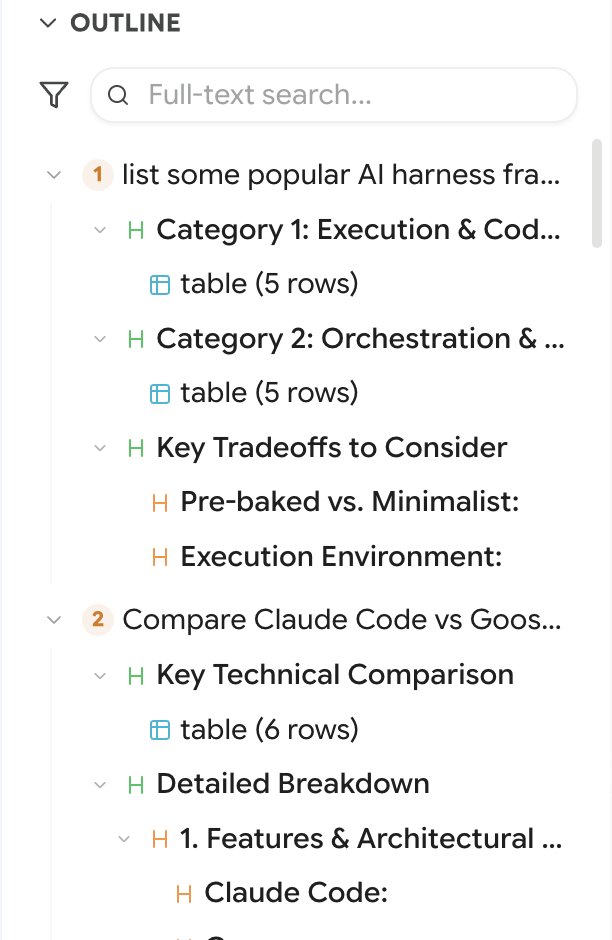
The Outline is a collapsible panel at the bottom of the Library tab. It shows the structure of whatever conversation you currently have open: each turn, and inside each turn, the headings, code blocks and tables the model produced.

Think of it as the document outline in a code editor, applied to a conversation.
Opening It
Click OUTLINE at the bottom of the Library tab. It's collapsed by default.
You can drag its top edge to resize it. If you collapse the Chats section above, the outline expands to fill the whole panel — useful when you're deep in one long conversation and don't need the tree.
What It Maps
Nesting follows the heading hierarchy of the answer, so a well-structured response produces a readable tree.
Navigating
Click any entry and the page scrolls to it. The turn you're currently reading is highlighted, and the Locate button (crosshair icon) in the panel header scrolls the outline itself to your current position.
Collapse all in the header folds every turn down to just the questions — which turns the outline into a list of everything you asked in this conversation. That alone is often the fastest way to find where a long session went wrong.
Filters
The funnel icon reveals filter chips:
- All — everything
- Headings — only headings
- Code — only code blocks
Filters only appear when the conversation actually contains that type, so you won't see a Code filter in a conversation with no code.
The Code filter is the one to reach for during a long debugging session. Fifteen turns in, you have eight versions of the same function scattered through the conversation. Filter to code and they're a list you can click through, instead of something you scroll for.
Search Inside the Conversation
The outline has its own full-text search box. It searches within the current conversation and prunes the tree to matches.
This is a genuine Ctrl+F for the conversation you're reading, with results shown as structure rather than as a flat list of highlights.
For searching across your whole library, use the Search tab instead.
Copying From It
Right-click an entry for:
- Copy question — the full text of your question for that turn
- Copy response — the model's full response for that turn
- Copy — a code block's raw contents
Copying a code block from the outline avoids hunting for the copy button in the page, and gets you the raw text without the surrounding prose.
Outline vs Smart Scrollbar
Both help you move around a long conversation. They're not the same thing.
Use the Smart Scrollbar to jump between messages. Use the Outline when you need to find a specific heading, table or code block inside an answer.
If It's Empty
The outline reads from the messages Better Sidebar has recorded for the current conversation.
"Open a conversation to see its outline" — you're not in a conversation.
"No outline content" — the conversation is open but its messages haven't been recorded, or there's genuinely no structure to map (a short back-and-forth with no headings or code has nothing to outline).
If a conversation you've clearly used shows nothing, its messages were never captured. Open it fresh, or see Search → getting message content.
If the outline is present but doesn't match what's on the page, the Smart Scrollbar's clear-and-reload button rebuilds the saved messages for that conversation.