Layout & Width
Gemini decides how wide your conversation should be. Better Sidebar lets you disagree. Every width is a slider, every piece of UI chrome has an off switch, and both changes apply the moment you drag.
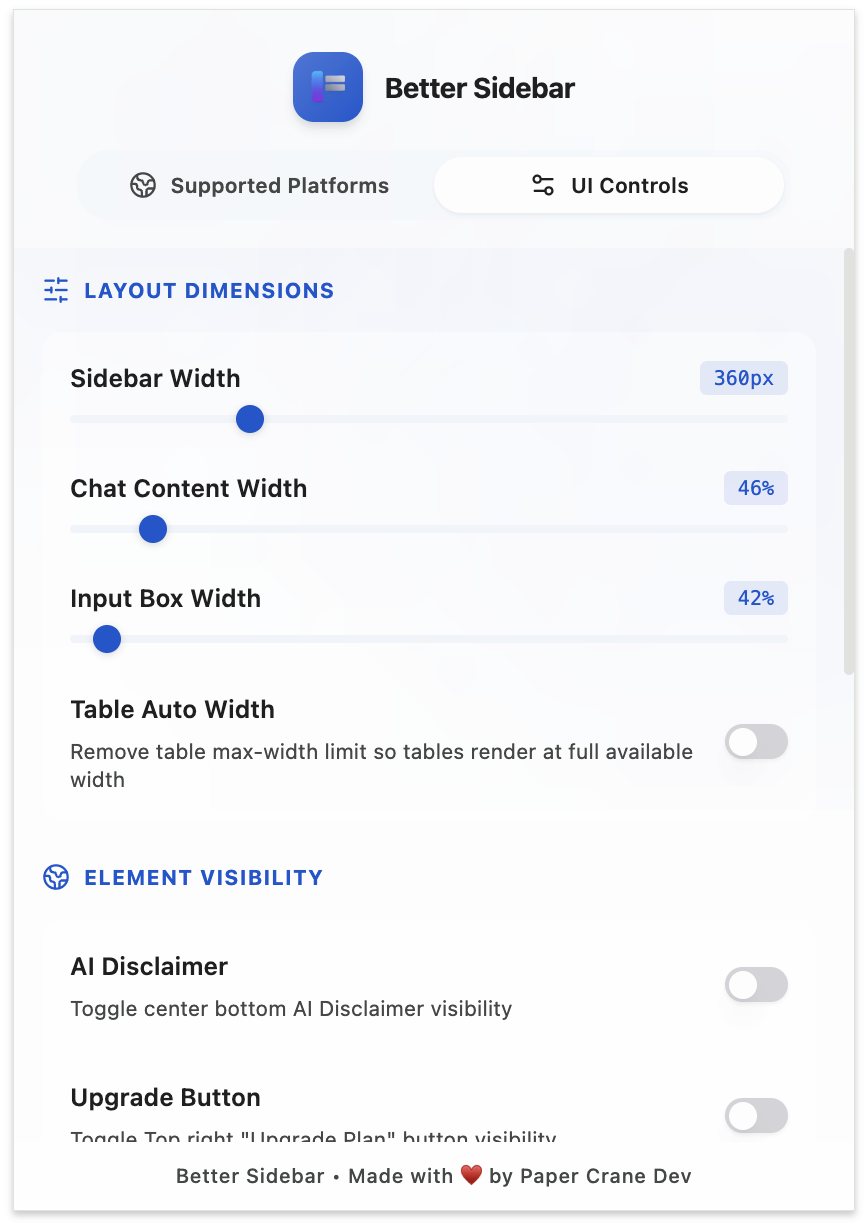
Everything on this page lives in Settings → UI Controls, which shows the controls for whichever platform you're currently on. The same controls are also in the browser toolbar popup — click the Better Sidebar icon next to your address bar for quick access without opening the sidebar.

Widths
Sidebar width
Each platform remembers its own value, so you can run a wide sidebar on Gemini and a narrow one on AI Studio.
On a 1080p screen, 340–380px is comfortable. On an ultrawide, go past 450px — the extra room is what stops long conversation titles from being truncated, which makes the tree far easier to scan.
Chat content width (Gemini only)
This is how wide the message column is. Gemini's stock layout is narrow; at 100% the messages fill the whole content area.
Different content wants different widths. Code and tables read better at 85–100%. Prose reads better at 55–70%, where line length stays short enough that your eye doesn't lose its place. If you mostly do one or the other, set it once and forget it.
Input box width (Gemini only)
Controlled separately from the chat width, so a wide reading column doesn't force a comically wide input box. Many people set chat to ~80% and leave input near the default.
Table auto width (Gemini only)
Gemini caps table width, which squeezes wide tables into a narrow column and wraps every cell. Turn Table Auto Width on to remove that cap so tables render at the full width available.
Worth enabling permanently if you ask for comparisons — the difference on a six-column table is dramatic.
Zen Mode (Gemini only)
Zen Mode strips the interface down to the conversation and the input box. Everything else gets out of the way.
Toggle it with Alt+Shift+Z, or Settings → UI Controls → Additional Features → Zen Mode. An exit button appears while it's active.
Zen Mode plus a wide chat width plus Compact Mode is the closest this gets to a distraction-free writing app. Good for long drafting sessions; less useful when you're jumping between chats.
Compact Mode
Compact Mode hides the sidebar's icon bar, so the tree gets the full panel width and there's nothing else to look at.
Toggle it from the ⋯ menu → Enter Compact Mode, or simply click the LIBRARY title in the sidebar header. Clicking the title again brings the icon bar back.
Note that hiding the icon bar means losing the tab buttons — use the Alt+1 … Alt+7 shortcuts to switch tabs while it's on.
Auto-hide Input
Available on both platforms. The input box shrinks out of the way while you're reading and comes back when you move your cursor toward the bottom of the screen.
This buys you real vertical space on a laptop, where the input box eats a meaningful share of the window.
Settings → UI Controls → Additional Features → Auto-hide Input
Collapse Run Settings by Default (AI Studio only)
AI Studio opens the Run Settings panel (temperature, safety settings, tools) every time. If you rarely touch those, turn this on and the panel stays collapsed until you expand it yourself.
Settings → UI Controls → Additional Features → Collapse Run Settings by Default
Element Visibility (Gemini only)
Independent of Zen Mode, you can hide individual pieces of Gemini's chrome:
These are separate switches — hide the disclaimer and keep everything else, if that's the one that bothers you.
The AI disclaimer is the one most people turn off first. It's a fixed strip at the bottom of the window that you've already read a thousand times, and hiding it gives the conversation a few more lines of height.
Other Gemini Tweaks
Show conversation tag
Displays the current conversation's tags next to its title in the top bar, so you know what bucket you're in without opening the sidebar. You can add and remove tags directly from there.
Remove auto watermark
Strips the sparkle watermark Gemini adds to images on download. On by default. See Image Download.
Selection toolbar
Its own section in UI Controls, with a master switch plus one switch per action. See Selection Toolbar.
Toolbar Popup Only
One toggle lives only in the browser toolbar popup, not in the sidebar's settings modal:
Slash Commands — whether typing / opens your prompt library. Available for both Gemini and AI Studio. Click the Better Sidebar icon in your browser toolbar, pick the platform tab, and you'll find it there.
The popup also has a Platforms tab for switching Better Sidebar off entirely on one site. See Platform Manager.
Settings Persistence
All of these are saved instantly and survive browser restarts. They're included in database exports and Google Drive backups too, so restoring a backup restores your layout along with your folders.