Multi-Account
If you use multiple Google accounts (personal, work, school) or want separate organization systems for different use cases, Multi-Account profiles let you keep everything cleanly separated. Each profile has its own independent database — its own folders, tags, favorites, and conversation index.

How Profiles Work
A profile is essentially a separate database. When you switch profiles:
- The entire sidebar reloads with that profile's data
- Folders, tags, favorites, prompts — all specific to the active profile
- Your conversations on the platform don't change (they live on Google's servers), but how they're organized in Better Sidebar changes completely
Think of it like having multiple desktops on your computer — same apps, different arrangements.
Your First Profile
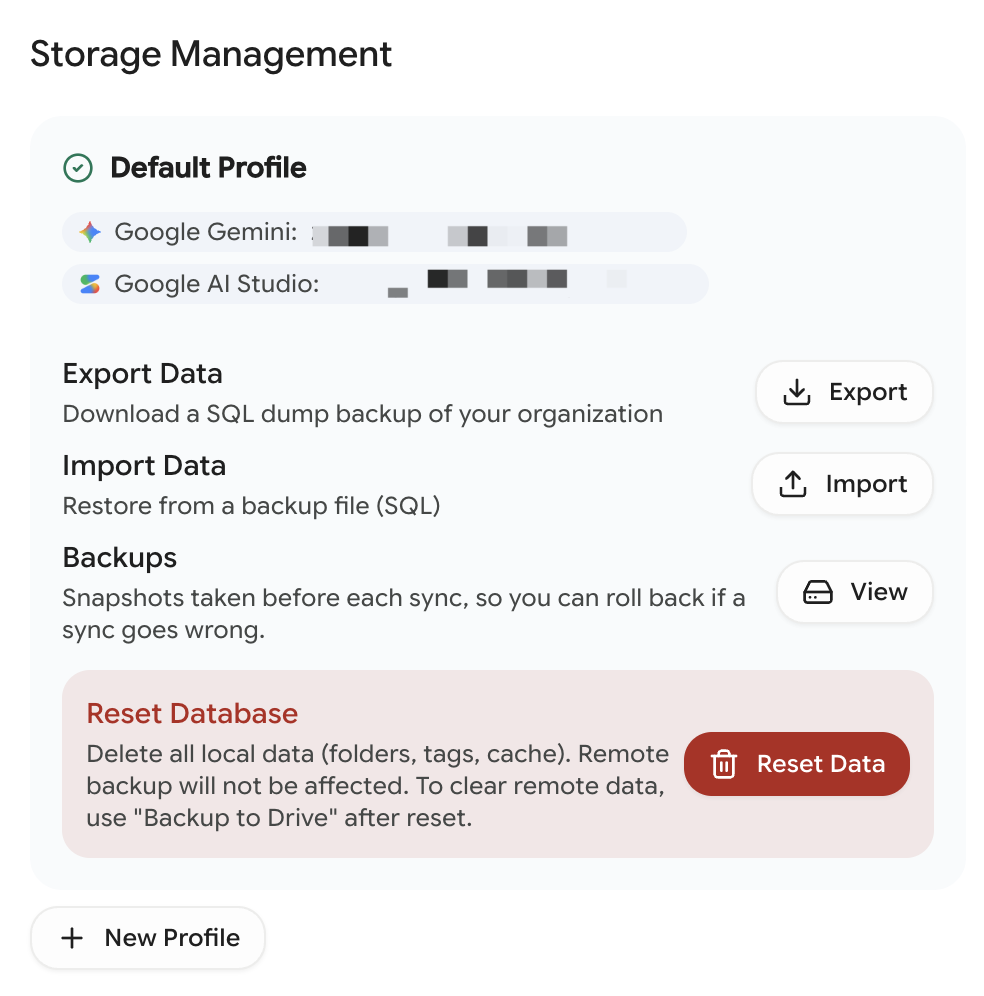
When you first install Better Sidebar, a default profile is created automatically. It's bound to whatever Google accounts you use on Gemini and AI Studio. You'll see it in Settings → Data as the active profile card, showing:
- The profile name
- Bound platform accounts (e.g., "Gemini: user@gmail.com")
- Export/Import/Reset buttons for that profile's database
Creating a New Profile
- Open Settings → Data tab
- Scroll to the bottom of the storage section
- Click New Profile
- Type a name (e.g., "Work", "Personal", "Research")
- Press Enter or click Create
The new profile starts with an empty database. Switch to it and the sidebar will be blank — ready for you to organize from scratch for that specific use case.
Name profiles after accounts or roles: "Personal Gmail", "Work (company.com)", "Side Project". Clear names make it obvious which profile to switch to.
Switching Profiles
In the profiles list (Settings → Data), each inactive profile has a Switch button that appears on hover. Click it to:
- Save the current profile's state
- Load the target profile's database
- Refresh the sidebar with the new profile's data
A toast notification confirms the switch: "Switched to: Work Projects"
The switch is nearly instant — it's just swapping which database file is active.
Account Binding
Profiles bind to the Google accounts you use while they're active. Switch to the "Work" profile, then visit Gemini signed in to your work account, and that account gets associated with "Work".
Bound accounts show as badges on the profile card — platform icon plus the account name.
When a new account shows up
If Better Sidebar sees a Google account it doesn't recognize, it asks what to do rather than guessing: bind it to an existing profile, or create a new one for it. Nothing is merged silently.
This is what makes the whole thing safe for people who are signed in to several Google accounts at once — switching account in Gemini doesn't dump your work chats into your personal tree.
Knowing which account you're in
The sidebar shows the current account's avatar in its header. Handy sanity check before you start filing things: if you're seeing an empty tree that should be full, you're probably in the wrong account.
Renaming a Profile
Hover over a profile → click the pencil icon (✏️). An inline text field appears — type the new name and press Enter. Press Escape to cancel.
Deleting a Profile
Hover over a profile → click the trash icon (🗑️). A confirmation dialog appears explaining that the profile's database will be permanently deleted.
Rules:
- You cannot delete the currently active profile (switch to another one first)
- Deletion removes the profile's database file — all its folders, tags, and organization data are gone
- Conversations on Google's servers are not affected
Deleting a profile is permanent. The entire database (folders, tags, favorites, prompts, indexed messages) for that profile is destroyed. Export the profile's database first if you might want it back.
Practical Use Cases
Separate work and personal
- Profile 1: Personal — Fun projects, learning conversations, creative writing
- Profile 2: Work — Client conversations, meeting notes, code reviews
Each has its own folder structure, tag system, and favorites. Your work conversations don't clutter your personal sidebar and vice versa.
Multiple Google accounts
If you log into Gemini with different accounts for different purposes, create a profile for each. The account binding helps you remember which is which.
Clean slate experiments
Want to try a completely different organization system without losing your current one? Create a new profile, experiment freely, and switch back if it doesn't work out.
Everything Is Per-Profile
Worth being explicit about, because it surprises people:
So each profile gets its own independent Drive backup and its own backup history. Switch profile and the Data & Storage page is talking about a different database entirely.
One thing to plan for: each browser profile consumes one licence activation slot (there are 10). Better Sidebar profiles inside a single browser profile don't each cost a slot — but if you run separate Chrome profiles for work and personal, that's two.
Pair profiles with Drive Sync and each of your organizational systems gets independent cloud safety. Just remember to switch to the profile you want before hitting Backup — the sync panel only ever touches the active one.